HOW TO PRINT HAPPY PLANNER SIZE PAGES IN WINDOWS | PRINTING GUIDES

happyplannerwindows_pin

So you’ve done your research, you bought your perfect planner pages, and now… you’re stuck. How do you print those beautifully designed and artfully crafted planner pages that you bought maybe here? Well I am about to show you. If you’re interested in seeing all the print tutorials, you can hop on over to this page. But in this post I’m going to show you how to print Classic Happy Planner size pages on Windows.

So before we hop in – Classic Happy Planner size pages measure at 7″ wide and 9.25″ tall, and they fit into the Classic Happy Planner by MAMBI (available at craft stores, online at Amazon & Blitzy, and a whole bunch of other places) If you’re looking for planner pages in this specific size you can see what I offer in my shop here.

what you’ll learn:

Below I go through 2 methods for printing both a full, dated planner (think 2017 daily planner) and a DIY, fill-in, random page planner. I talk about the basic steps that you’ll need to go through, and at the bottom I include a screenshot walk-through to give you a better visual. I’ve included a walk-through of my current Canon MG7720 printer (inkjet) as well as my previous Samsung printer (laser).

from start to finish, you will need the following items:

1 a computer with Adobe Reader

I always suggest having the latest Adobe Reader program. It’s free and it works the best with my pages (and most pages) because I design in Adobe.

2 printer and printer paper

3 a paper cutter of some sort

4 a hole punch (MAMBI sells a special punch for the Happy Planner)

If you want more info on planner basics check out this blog post .

and now a disclaimer:

While I try to do my best to cover as much as I can when it comes to printing, I cannot know what every printer is like. I also cannot promise that my ways of printing will work for you or will turn out as well as they do for me. I do suggest that if you are having issues with your printer you google the problem first, as those familiar with your printer will likely be able to help you more than I can. If you can’t find your answer, feel free to leave a comment and I can try my best. I also suggest that you be aware of your printers capabilities before you purchase any planner pages.

Also everything is based on using US Letter size paper as the basic printer paper.

Download disclaimer – Please don’t share any files from Rourke Planners with others – instead share the website URL with your friends, enemies, or awkward acquaintances.
Any files, free or purchased, from Rourke Planners are copyrighted works and for personal use only. You may not sell, distribute, edit, or claim any version of this file as your own. Feel free to share your usage of these files on social media – you don’t have to tag me but it’s super appreciated. Tag me on instagram with @RourkePlanners or #myrourkeplanner.

Read Me File


PRINTING A DATED PLANNER – ‘AS IS’ METHOD

This is always my suggest method of printing your planner pages. It’s much easier to get pages in order for a dated planner or to get double sided pages for other pages. The basis of this method is that you have pre-cut pages and you print ‘as is’ – meaning in that page size. This method has another pro – it gives you the most usable scrap paper, compared to printing in the center and then cutting out your page.

STEP 1 – OPEN YOUR PAGES IN ADOBE READER

STEP 2 – HIT PRINT

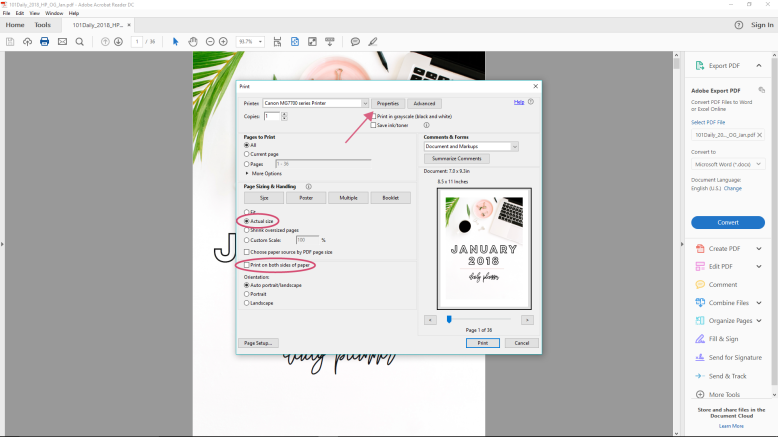
Under ‘Page Size + Handling’, be sure ‘Actual Size’ is selected.

You can also select ‘Print on Both Sides’ in this box.

STEP 3 – HIT PROPERTIES

This box is more customized to your printer. You’ll want to be sure you have 3 things right:

size

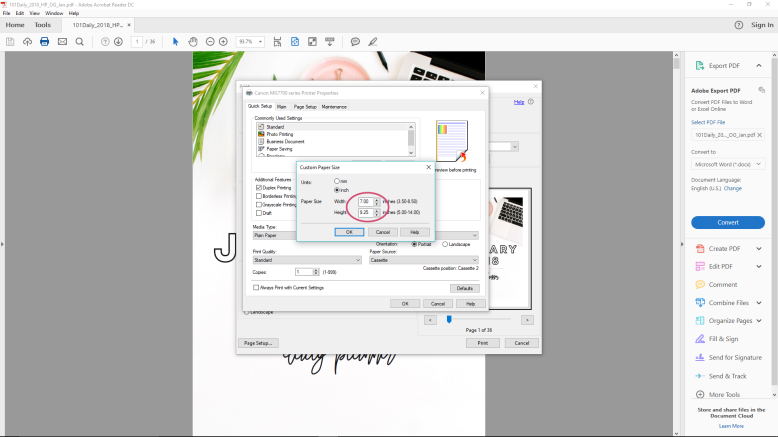
Be sure the paper size is correct. In this case, you’ll make sure it’s set to Custom – 7″ wide by 9.25″ high.

quality

Select your desired print quality. I always suggest printing at a good quality so you have a good planner. This may mean simply ‘high’ quality, or you can select ‘photo’ quality, whichever is better. You can also manually adjust the color settings on some printers to get a more accurate match to the screen output.

double sided

This may be displayed as ‘double sided’ or ‘duplex’ printing. Be sure to select it if your printer can handle it. My printer can only print certain sizes automatically double sided (mainly letter, for my uses); I simply un-check ‘automatic’ under ‘duplex’ printing. This means it prints out one side, you put the paper back in, and then it prints the other side. If you aren’t sure what your printer can do double-sided, you can either google or just try it out & see. You may need to just print one page at a time. I find this is best accompanied by an entertaining show.

STEP 3 – PRINT

Now all you need to do is print! And punch holes in the pages.


canon walk through:
canon1

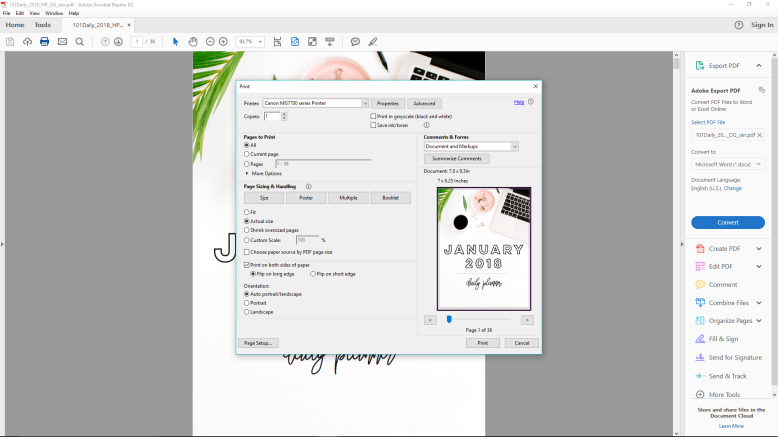
1 Print Box – Select “Actual Size” printing, select “double-sided” or “duplex” printing. Then go up to Properties.
canon2

2 Properties – “Duplex” Printing is selected, quality is set to high, and then we go to page size to set it to custom.
canon3

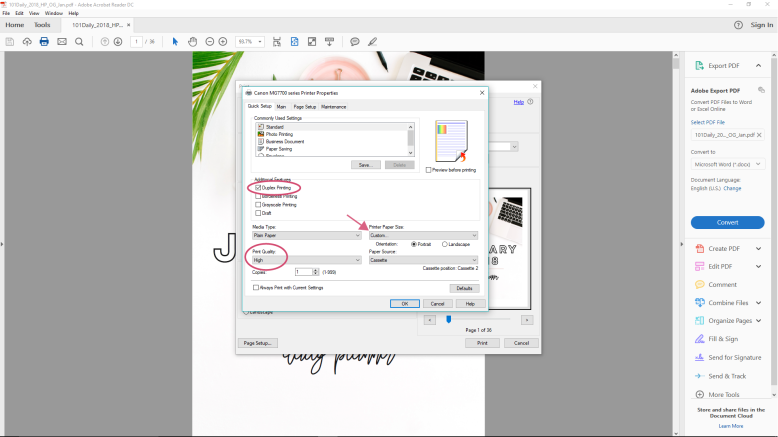
3 Page Size – Set the page size to 7″ wide and 9.25″ high.
canon4

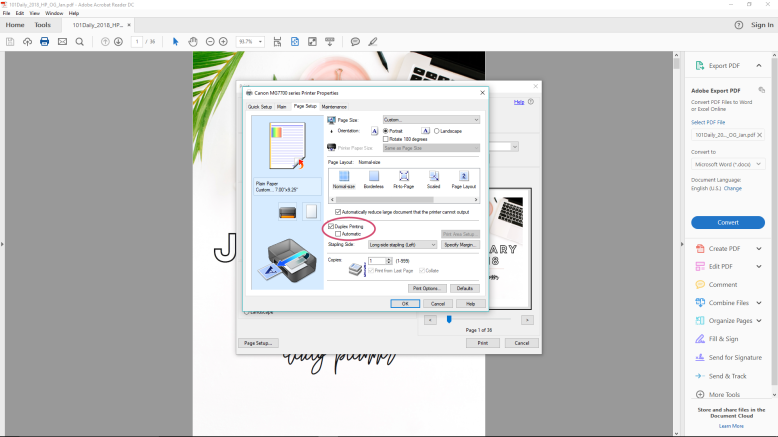
4 More Properties – Duplex printing is on, but I’ve turned off automatic because my printer won’t do it. You’ll need to try it out with your printer to see if it will print double-sided/duplex, and then if it will, if it will print it automatically.
canon5

5 Everything is set!

samsung walk-through:
samsung1

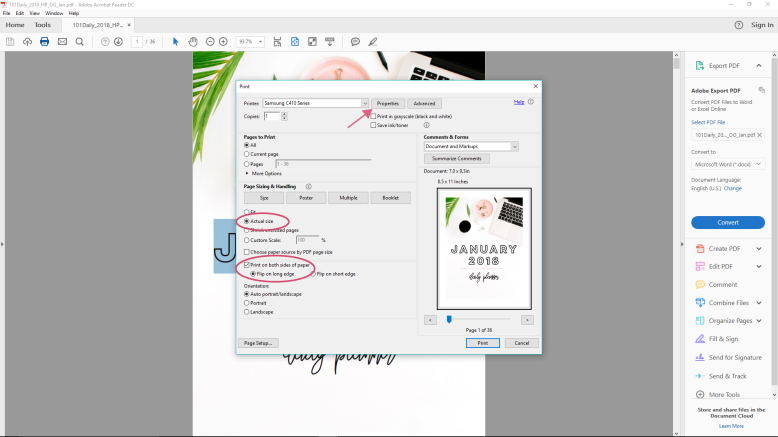
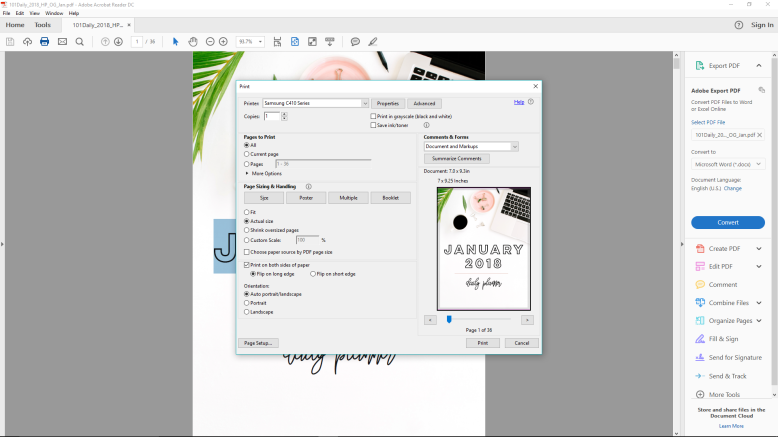
1 Print Box – Select “Actual Size” printing, select “double-sided” or “duplex” printing. Then go up to Properties.
samsung2

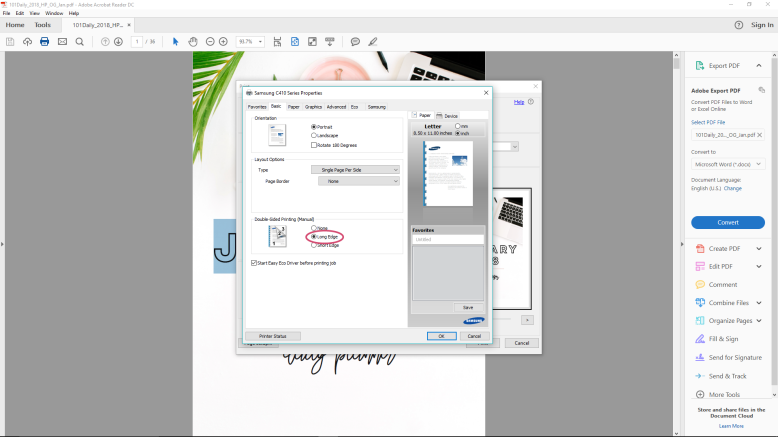
2 Properties – Double Sided Printing is selected (that’s what “long-edge binding” is for).
samsung3

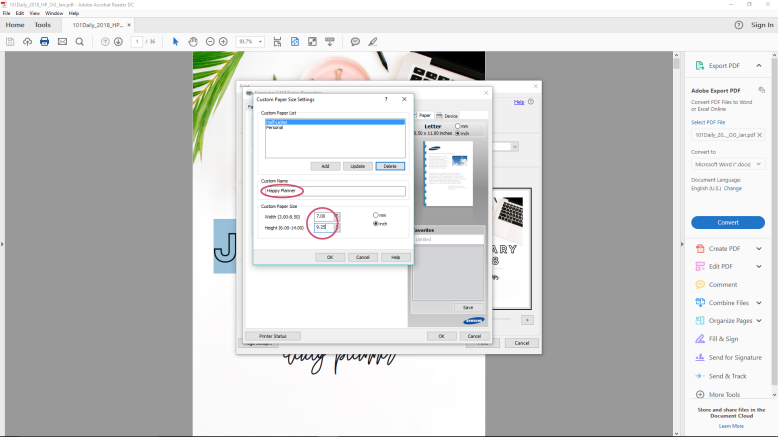
3 Paper size – We set the paper size to a new custom size. I’m able to save the Happy Planner size of 7″ x 9.25″.
samsung4

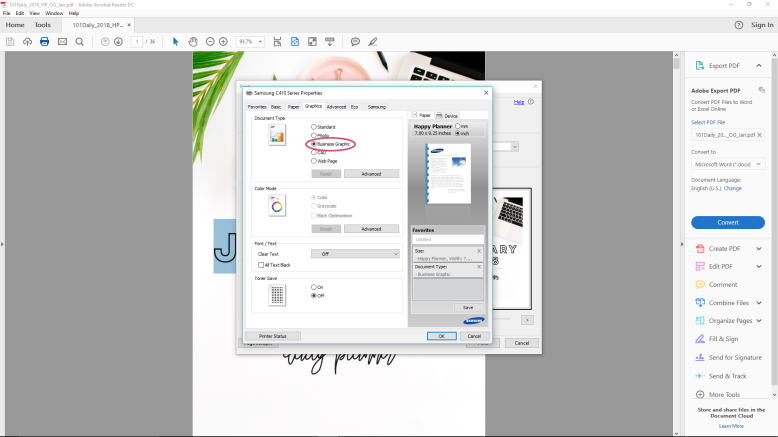
4 Set your print quality to the desired setting.
Samsung5.png

5 All done!


PRINTING ON LETTER PAPER

So I’m not going to give a full play-by-play for this one. The gist of it is – if your printer cannot print on Happy Planner size paper, you can still just print on full US Letter paper and THEN cut the pages out. I’m not as big a fan of this method because (1) the printing is a bit less aligned with the end result and (2) you get smaller scraps of paper, making them harder to reuse. Also you have to cut more. BUT it is nice to have the option if your printer can’t do the custom size.

If you are going to do this method regularly I highly suggest getting a proper paper cutter. That way you can simply do your measurement on the cutter and cut – instead of having to print out guide lines or mark with a ruler.

The only difference will be that you WILL NOT PUT IN A CUSTOM SIZE. Just leave it on US Letter (8.5″ x 11″). It will print out with your planner page centered on the paper.

If you want some cut lines to print on the paper to help you out – I got you. I made it in both PDF and PNG – either will work. Just gather up your planner pages, put them back in the printer, and print the proper number of copies of the cut lines. Flip your papers over and do it again.

Cut Lines PDF | Cut Lines PNG

I’ve also made a nice little draw-up of where your cut lines will be if you’re doing the original ‘As Is’ (Cut then Print) or printing on US Letter (Print then Cut).
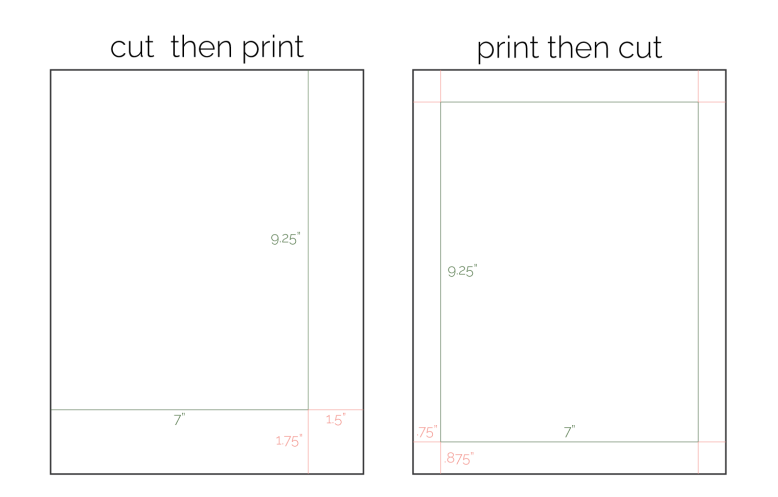
wheretocut_happyplanner

And once you’ve printed and cut out your pages, all you need to do is punch them and put them into your happy planner!


Hope this helps you in your planner printing! If you have any questions feel free to comment below, or if you’ve found a solution to a problem you’ve been having please comment too – I’m sure others are having that same issue. Be sure to pin this tutorial for the future.

Happy Planning!
Amanda
HOW TO PRINT A5 SIZE PAGES IN WINDOWS | PRINTING GUIDES

a5windows_pin

So you’ve done your research, you bought your perfect planner pages, and now… you’re stuck. How do you print those beautifully designed and artfully crafted planner pages that you bought maybe here? Well I am about to show you. If you’re interested in seeing all the print tutorials, you can hop on over to this page. But in this post I’m going to show you how to print A5 size pages on Windows.

So before we hop in – A5 size pages measure at 148mm/5.83″ w by 210mm/8.27″ h and they fit into A5 size six-ring planners and A5 size binders (not a size used for binders in the US). If you’re looking for planner pages in this specific size you can see what I offer in my shop here.

I do want to note that if you are in the US you can print A5 size pages onto Half-Letter (that is, half a normal US Letter sheet), almost always without issue. This is beneficial because you can have 2 pages per piece of paper, whereas if you’re printing real A5 size you can only get 1 page per piece of paper. BUT if you can get your hands on real A5 or A4 (which is twice the size, so if you cut A4 in half you will get A5, just like US Letter to Half Letter),

what you’ll learn:

Below I go through 2 methods for printing both a full, dated planner (think 2017 daily planner) and a DIY, fill-in, random page planner. I talk about the basic steps that you’ll need to go through, and at the bottom I include a screenshot walk-through to give you a better visual. For windows, I’ve included a walk-through of my current Canon MG7720 printer (inkjet) as well as my previous Samsung printer (laser).

from start to finish, you will need the following items:

1 a computer with Adobe Reader

I always suggest having the latest Adobe Reader program. It’s free and it works the best with my pages (and most pages) because I design in Adobe.

2 printer and printer paper

3 a paper cutter of some sort

4 a hole punch

If you want more info on planner basics check out this blog post .

and now a disclaimer:

While I try to do my best to cover as much as I can when it comes to printing, I cannot know what every printer is like. I also cannot promise that my ways of printing will work for you or will turn out as well as they do for me. I do suggest that if you are having issues with your printer you google the problem first, as those familiar with your printer will likely be able to help you more than I can. If you can’t find your answer, feel free to leave a comment and I can try my best. I also suggest that you be aware of your printers capabilities before you purchase any planner pages.

Also everything is based on using US Letter size paper as the basic printer paper.

Download disclaimer – Please don’t share any files from Rourke Planners with others – instead share the website URL with your friends, enemies, or awkward acquaintances.
Any files, free or purchased, from Rourke Planners are copyrighted works and for personal use only. You may not sell, distribute, edit, or claim any version of this file as your own. Feel free to share your usage of these files on social media – you don’t have to tag me but it’s super appreciated. Tag me on instagram with @RourkePlanners or #myrourkeplanner.

Read Me File


PRINTING ‘AS IS’ METHOD ON PRE-CUT PAPER

This is always my suggest method of printing your planner pages. It’s much easier to get pages in order for a dated planner or to get double sided pages for other pages. The basis of this method is that you have pre-cut pages and you print ‘as is’ – meaning in that page size.

This is my preferred method for both a dated, complete planner AND a DIY type planner. It’s the easiest for a dated planner, and it makes printing double sided and in a certain order much easier for a DIY planner.

STEP 1 – OPEN YOUR PAGES IN ADOBE READER

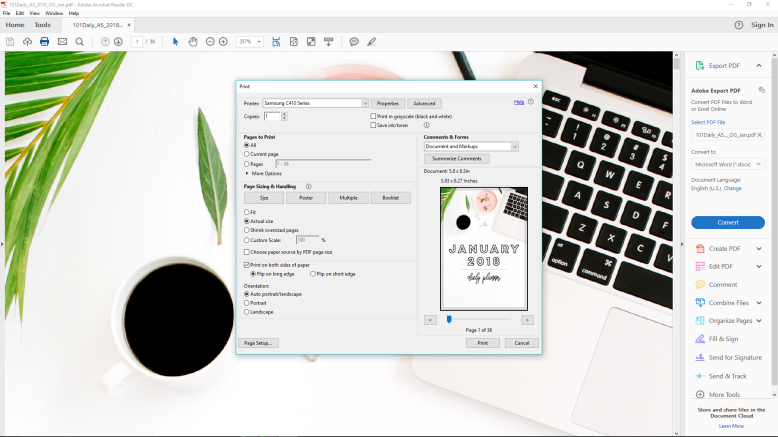
STEP 2 – HIT PRINT

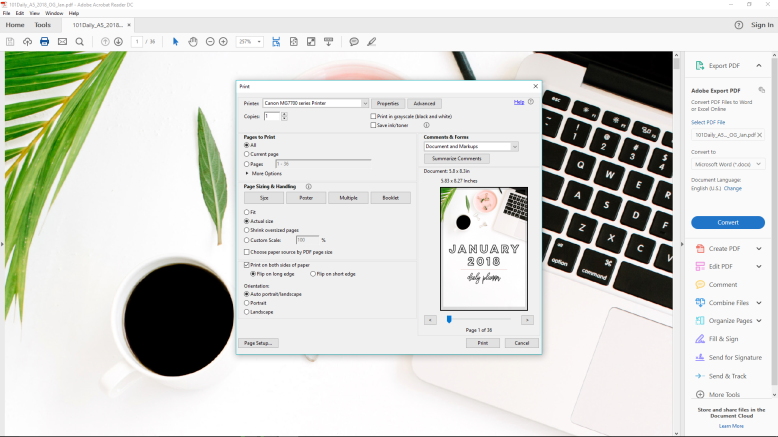
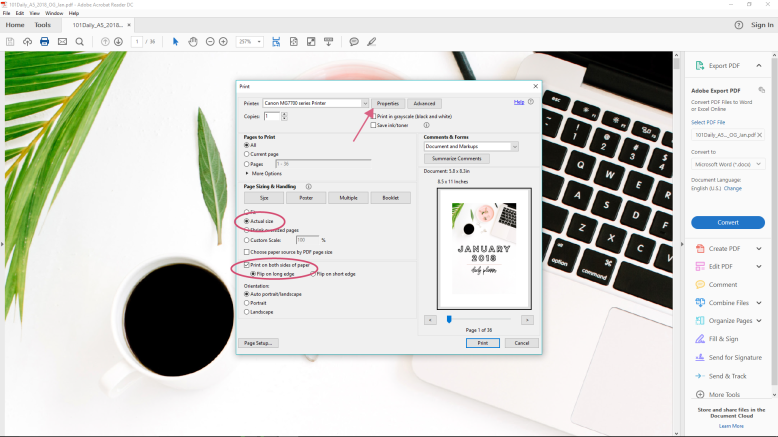
Under ‘Page Size + Handling’, be sure ‘Actual Size’ is selected.

You can also select ‘Print on Both Sides’ in this box.

STEP 3 – HIT PROPERTIES

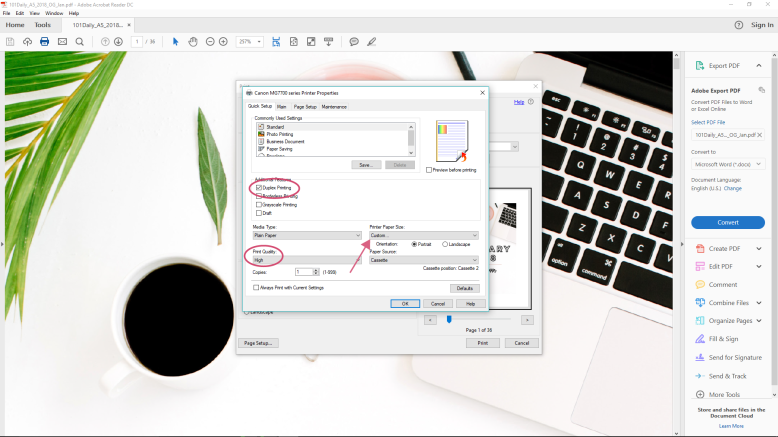
This box is more customized to your printer. You’ll want to be sure you have 3 things right:

size

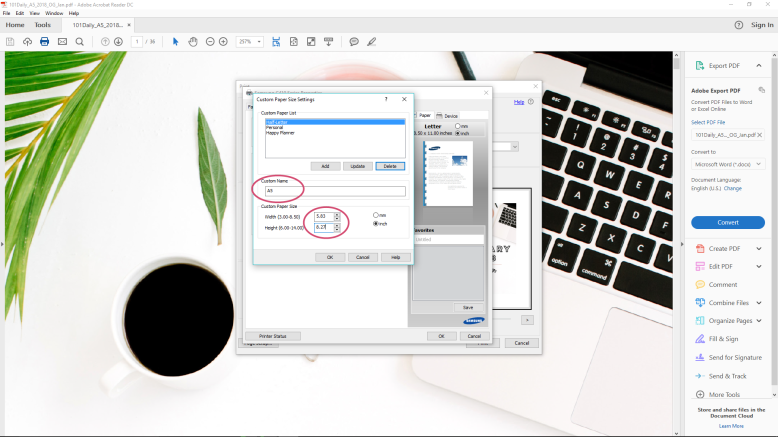
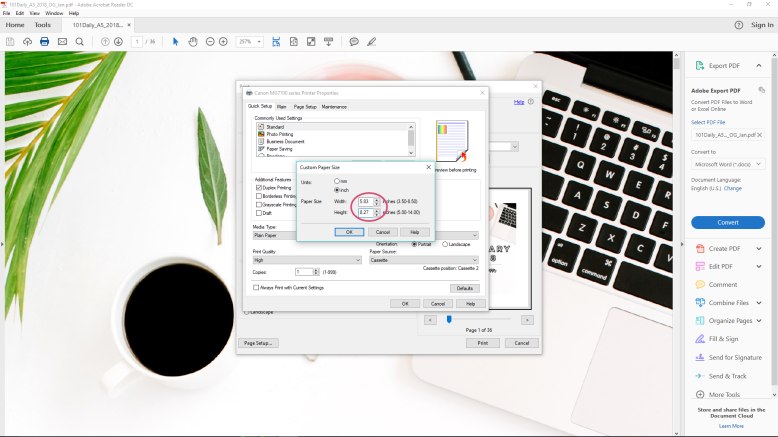
Be sure the paper size is correct. In this case, you’ll make sure it’s set to A5 or Custom Size> 5.83″ w by 8.27″ h. Many printers will allow you to set a custom paper size if the desired one isn’t available.

quality

Select your desired print quality. I always suggest printing at a good quality so you have a good planner. This may mean simply ‘high’ quality, or you can select ‘photo’ quality, whichever is better. You can also manually adjust the color settings on some printers to get a more accurate match to the screen output.

double sided

This may be displayed as ‘double sided’ or ‘duplex’ printing. Be sure to select it if your printer can handle it. My printer can do double sided for larger sheets, but it can only do automatic double-sided printing for letter. So it prints out one side of all the pages, then you just load it back in and it will print the other side. If your printer can’t print double sided you can always just print one page at a time. I use it as an opportunity to watch something and do squats while I’m moving from computer to printer.

STEP 3 – PRINT

Now all you need to do is print! And punch holes in the pages.


canon walk through:

canon1

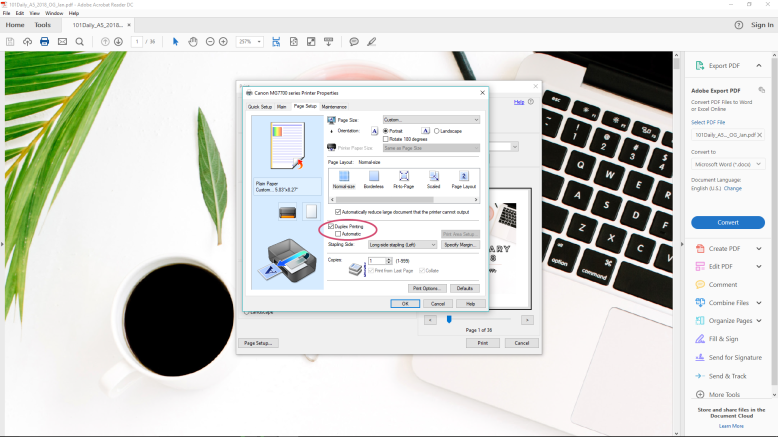
1 Print Box – Select ‘Actual Size’ and ‘Print on Both Sides of Paper’. Then click on Properties.

canon2

2 Properties – Duplex Printing is selected, I select ‘High Quality’ printing, and then I go to Paper Size.

canon3

3 Paper Size – If A5 is an option, you can click that. Otherwise do ‘Custom’ and enter the paper size yourself.

canon4

4 Properties – I deselect ‘Automatic’ for Duplex printing.

canon5

5 Done!

samsung walk-through:

samsung1

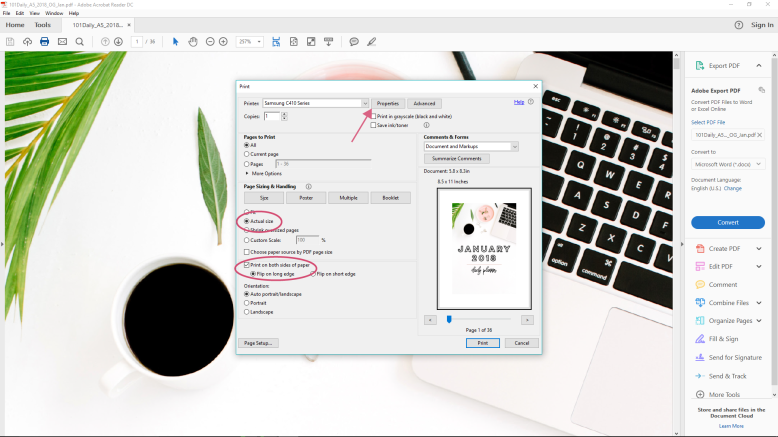
1 Print Box – Select ‘Actual Size’ and ‘Print on Both Sides of Paper’. Then click on Properties.

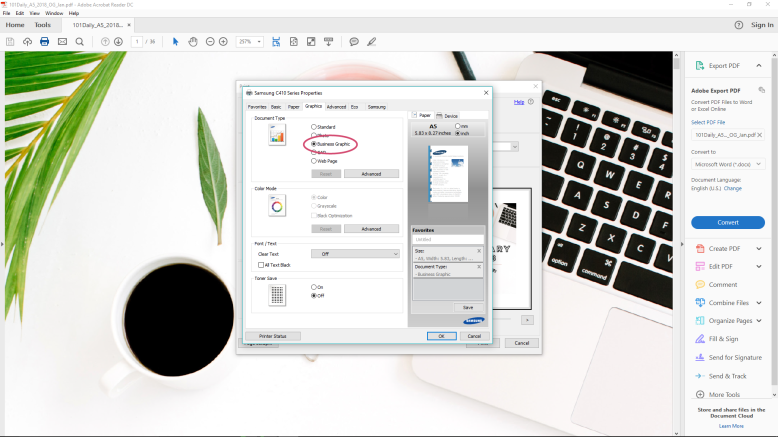
samsung2

2 Properties – ‘Long Edge Printing’ is the proper double-sided printing selection.

samsung3

3 Paper Size – If A5 is an option, you can click that. Otherwise do ‘Custom’ and enter the paper size yourself.

samsung4

4 Properties – I change print quality selection to the best one.

samsung5

5 Done!


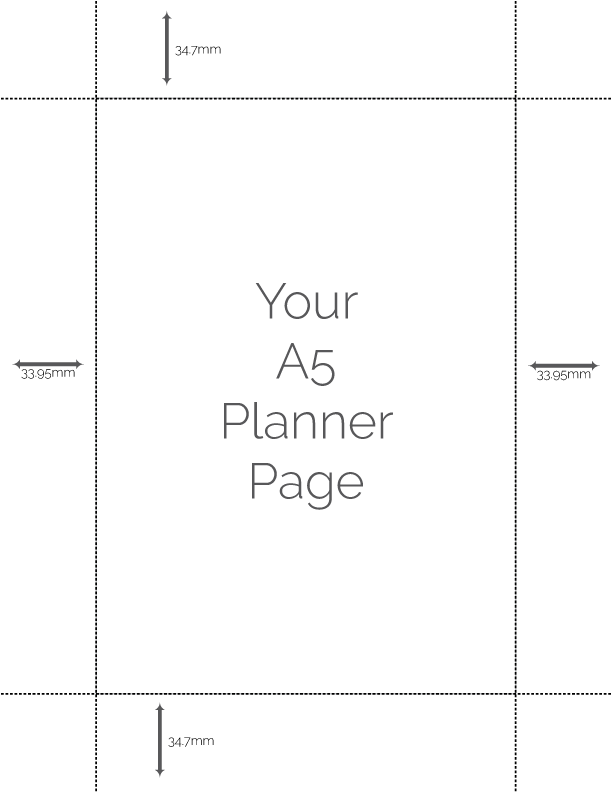
PRINTING ‘AS IS’ ON LETTER PAPER

So this is pretty much the same as above, except you will be keeping the paper size as ‘Letter’ (8.5″ x 11″). This is the default of all US printers so it’s quite easy. The reason I’m not as big a fan of this method is because it is much easier overall to cut-then-print, rather than print-then-cut. You have to measure to the center of the page, rather than from the corner, leaving you with more measurements & cutting (as well as smaller scraps of paper you’re less likely to use). HOWEVER if your printer won’t let you print on A5 size paper, this is the method for you.

To help you out, I’ve included both a little picture illustrating how to cut the paper, as well as some printable cut lines to guide you.

centercutlines

Printable Cut Lines PDF | Printable Cut Lines PNG


Hope this helps you in your planner printing! If you have any questions feel free to comment below, or if you’ve found a solution to a problem you’ve been having please comment too – I’m sure others are having that same issue. Be sure to pin this for the future.

Happy Planning!
Amanda

HOW TO PRINT A6 SIZE PAGES IN WINDOWS | PRINTING GUIDES

a6windows_pin

So you’ve done your research, you bought your perfect planner pages, and now… you’re stuck. How do you print those beautifully designed and artfully crafted planner pages that you bought maybe here? Well I am about to show you. If you’re interested in seeing all the print tutorials, you can hop on over to this page. But in this post I’m going to show you how to print A6 size pages on Windows.

So before we hop in – A6 size pages measure at 4.13″ w x 5.83″ h (or 148mm h x 105mm w) and they fit into A6 size 6-ring organizers. A6 is not a very common size in the US but is used more internationally. If you want more information on paper sizes and what planners use what size hop on over to this blog post. If you’re looking for planner pages in this specific size you can see what I offer in my shop here.

what you’ll learn:

Below I go through 3 methods for printing your planner. Whether you have a fully complete planner (like a 2018 daily planner) or a DIY, piece-it-together planner, there will be a method for you. I talk about the basic steps that you’ll need to go through, and at the bottom I include a screenshot walk-through to give you a better visual. I’ve included a walk-through of my current Canon MG7720 printer (inkjet).

from start to finish, you will need the following items:

1 a computer with Adobe Reader

I always suggest having the latest Adobe Reader program. It’s free and it works the best with my pages (and most pages) because I design in Adobe.

2 printer and printer paper

3 a paper cutter of some sort

4 a hole punch

If you want more info on planner basics check out this blog post .

and now a disclaimer:

While I try to do my best to cover as much as I can when it comes to printing, I cannot know what every printer is like. I also cannot promise that my ways of printing will work for you or will turn out as well as they do for me. I do suggest that if you are having issues with your printer you google the problem first, as those familiar with your printer will likely be able to help you more than I can. If you can’t find your answer, feel free to leave a comment and I can try my best. I also suggest that you be aware of your printers capabilities before you purchase any planner pages.

Also everything is based on using US Letter size paper as the basic printer paper.

Download disclaimer – Please don’t share any files from Rourke Planners with others – instead share the website URL with your friends, enemies, or awkward acquaintances.
Any files, free or purchased, from Rourke Planners are copyrighted works and for personal use only. You may not sell, distribute, edit, or claim any version of this file as your own. Feel free to share your usage of these files on social media – you don’t have to tag me but it’s super appreciated. Tag me on instagram with @RourkePlanners or #myrourkeplanner.

Read Me File


THE ‘AS IS’ METHOD ON PRE-CUT PAGES

This is always my suggest method of printing your planner pages. It’s not only easy for a complete, dated planner; it’s the best way to print a piecemeal planner. When you’re dealing with putting things in order while keeping things double-sided, it gets complicated. The basis of this method is that you have pre-cut pages and you print ‘as is’ – meaning in that page size.

STEP 1 – OPEN YOUR PAGES IN ADOBE READER

STEP 2 – HIT PRINT

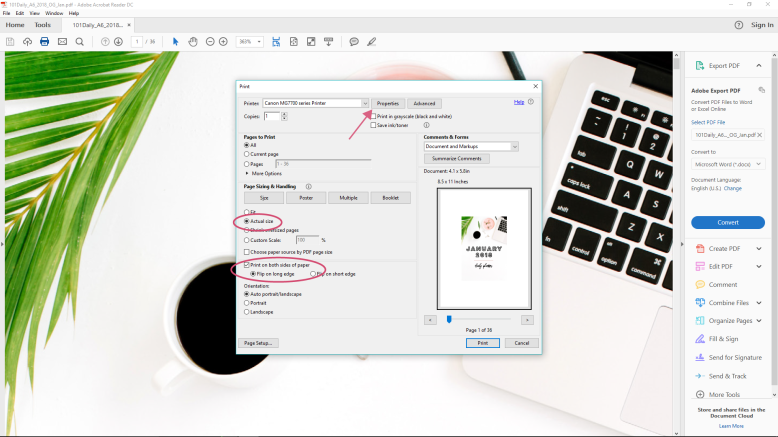
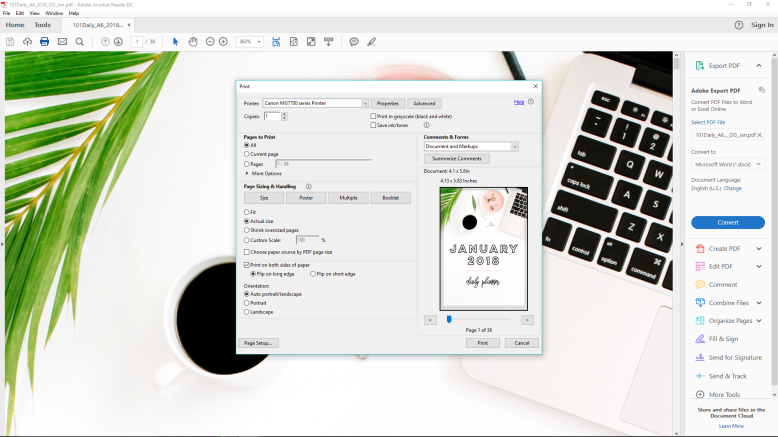
Under ‘Page Size + Handling’, be sure ‘Actual Size’ is selected.

You can also select ‘Print on Both Sides’ in this box.

STEP 3 – HIT PROPERTIES

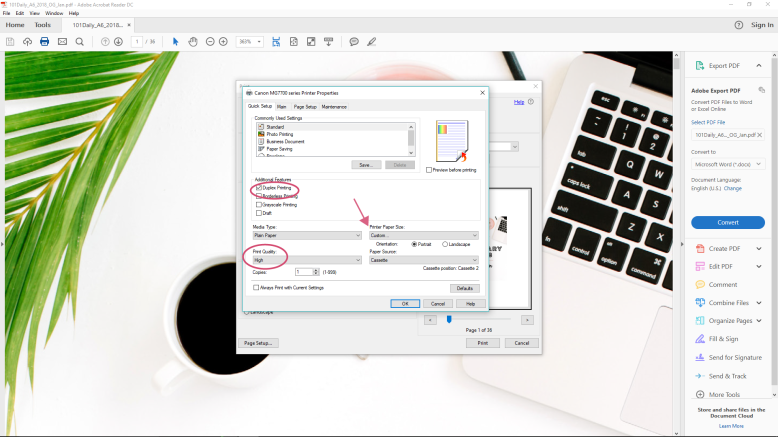
This box is more customized to your printer. You’ll want to be sure you have 3 things right:

size

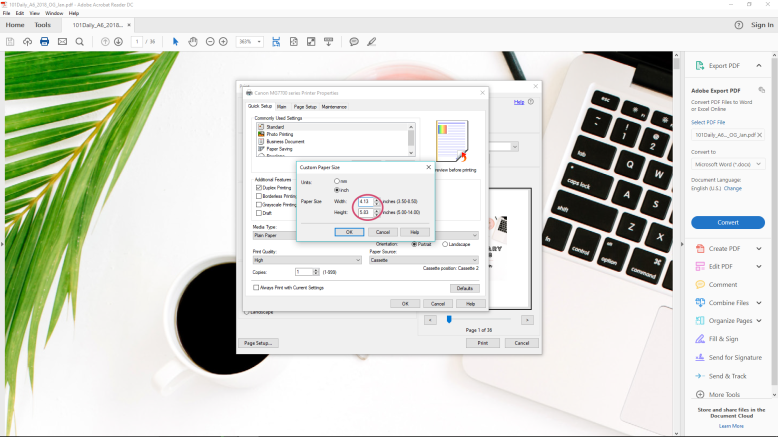
Be sure the paper size is correct. In this case, you’ll make sure it’s set to A6 or Custom>4.13″ w x 5.83″ h. Many printers will allow you to set a custom paper size if the desired one isn’t available.

quality

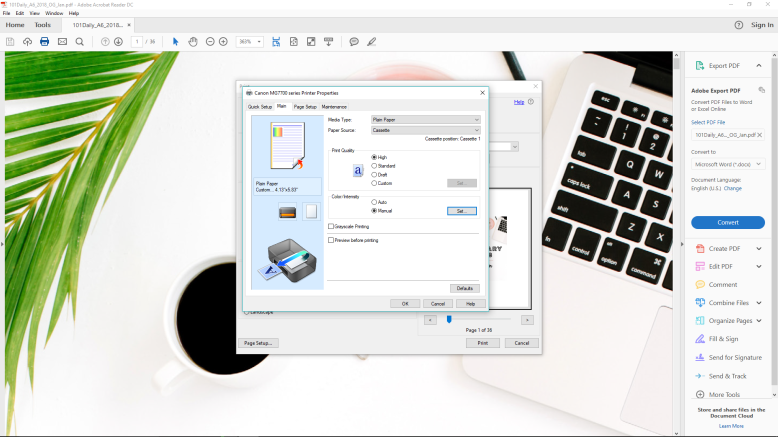
Select your desired print quality. I always suggest printing at a good quality so you have a good planner. This may mean simply ‘high’ quality, or you can select ‘photo’ quality, whichever is better. You can also manually adjust the color settings on some printers to get a more accurate match to the screen output.

double sided

This may be displayed as ‘double sided’ or ‘duplex’ printing. Be sure to select it if your printer can handle it. If you aren’t sure, I suggest you just test it out. If your printer can’t do double-sided automatically, maybe you can do a manual duplex printing (it prints one side of the whole stack, you put the stack back in and it prints the other). If it can’t do double-sided at all, this isn’t a deal breaker. I just print one page at a time. It’s a bit annoying, but it’s a good chance to put something entertaining on and do some squats while you’re alternating between computer and printer.

STEP 3 – PRINT

Now all you need to do is print! And punch holes in the pages.


walk through:

asis1

1 Print Box – Click actual size, click print on both sides (flip long edge), and then go hit properties

asis2

2 Properties Box – Duplex printing is selected, high quality is selected then I go to Paper Size. If A6 is an option, you can choose that, otherwise do ‘custom’ size.

AsIs3.png

3 Custom Size Paper – Set your custom size.

asis4

4 Print Quality is high.

asis5

5 Duplex printing – your printer may or may not be able to print double sided on this size paper. Try it out for yourself to determine.

asis6

6 All done!


THE ‘BOOKLET’ METHOD – FOR DATED PLANNERS

This method only really works with a multi-page PDF, such as a dated planner (like the 2018 daily planner or something similar – not a planner where you fill it in yourself). If you can’t print on pre-cut pages but have a DIY planner, check the next method.

This method is for anyone whose printer cannot print on small enough paper. It will print your pages on letter size paper at their proper size. Once the stack is printed out, you fold the stack in half and bam – all the pages are double sided and in the right order. You just need to cut out the pages AFTER you print them. The benefit to this method is that your printer will print in order (for double sided pages) and you can use letter size. The downside is that it’s a real pain to cut afterwards and then get the pages in order. And in my experience the pages aren’t quite as even as when you print one page at a time.

If you’re wondering how you’ll know where to cut, I created a simple cut lines printable available below. You can print it on the paper before or after you print your pages. I cannot promise it will line up perfectly, however – that’s really up to your printer. (You can see why I suggest the first method).

Download Cut Lines

STEP 1 – OPEN YOUR PAGES IN ADOBE READER

STEP 2 – HIT PRINT

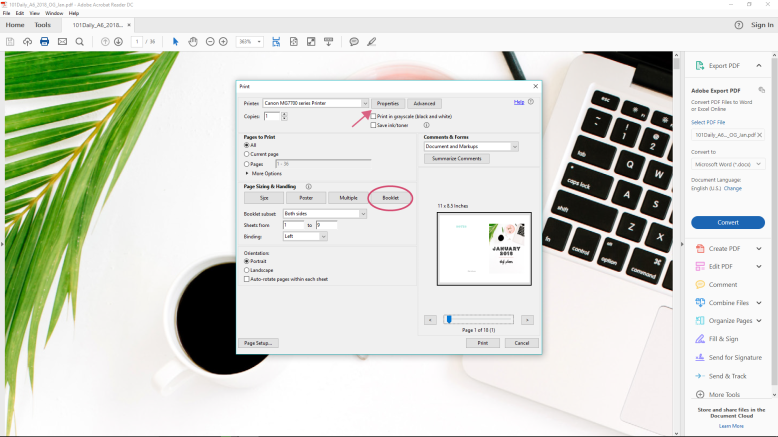
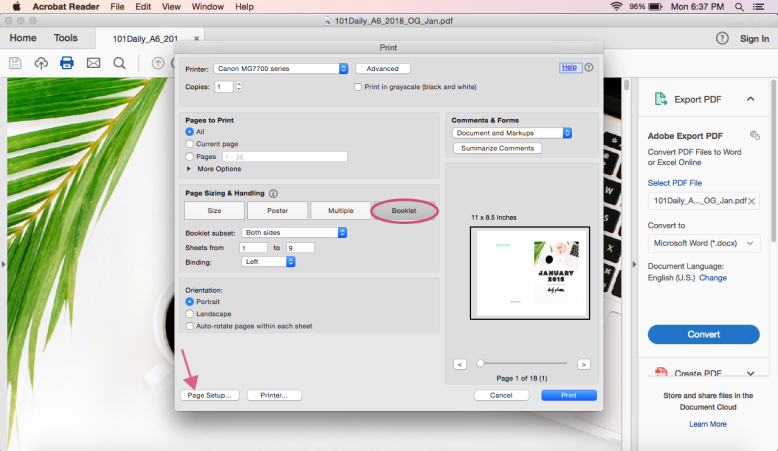
Under ‘Page Size + Handling’, select ‘booklet’. You’ll see your paper is now landscape and the cover page is on the right side.

STEP 3 – HIT PROPERTIES

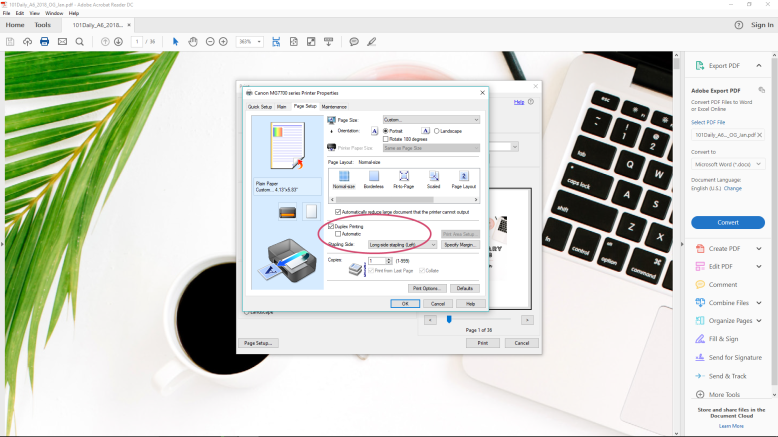
This box is more customized to your printer. You’ll want to be sure you have 3 things right:

size

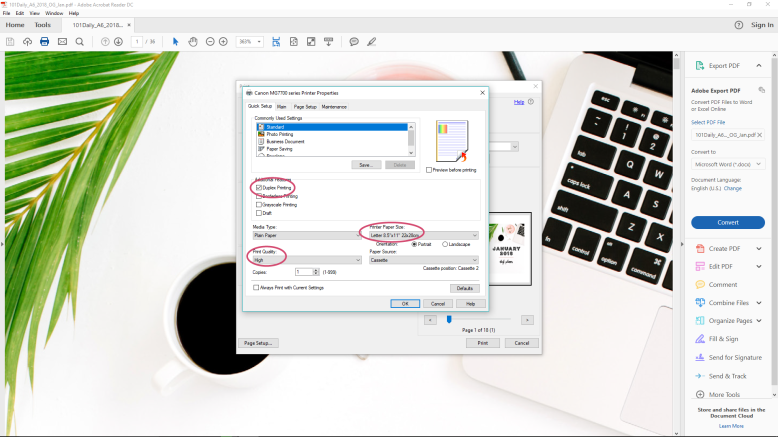
Because we’re printing in booklet, be sure your paper size is set to US letter (8.5″ x 11″). Otherwise everything will be super tiny.

quality

Select your desired print quality. I always suggest printing at a good quality so you have a good planner. This may mean simply ‘high’ quality, or you can select ‘photo’ quality, whichever is better. You can also manually adjust the color settings on some printers to get a more accurate match to the screen output.

double sided

So this is one that really depends on your printer. From my experience with multiple printers, you do not need to have ‘double sided’ selected as that is kind of the point of booklet printing. But I can’t know your printer. It doesn’t make a difference whether or not I click ‘double sided’ or duplex.

STEP 3 – PRINT

Now print! Once the pages are printed you may be like ‘hey they’re out of order!’, and they kind of are unless you fold that stack of paper like a playbill and everything is in order. So cut out your pages and get them in the right order, then you can punch them.

walk through:

booklet1

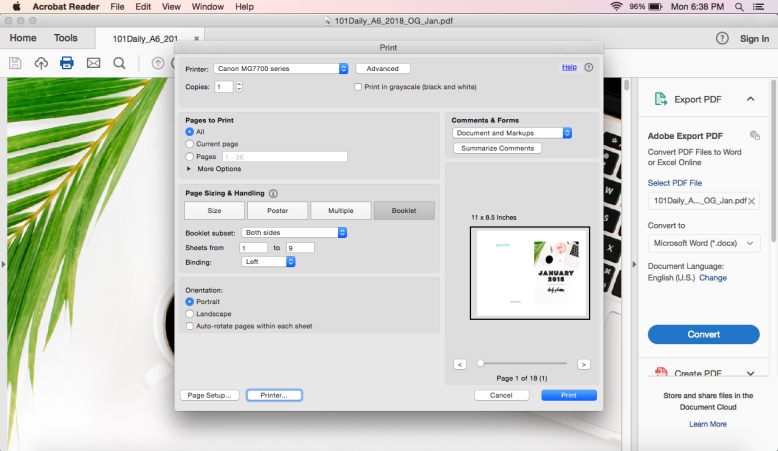
1 Print Box – Select ‘Booklet’

booklet2

2 Properties – Duplex is on, print quality is high, and paper size is still letter size.

booklet3

3 Properties – You may need to select duplex printing and set your binding to short edge, but all the printers I’ve used have printed the right way automatically.

Done!


THE CLICK + ADD METHOD FOR RANDOM PAGES

OK, so. You have a bunch of pages and you need to print them on letter paper because your printer can’t handle the smaller paper size. And it’s a conundrum. Enter, the click-and-add template. Patent Pending. Just kidding. I created a PDF that you can insert other PDFs into, so you can print your pages in order and double sided. Personally, I think it’s super cool.

A quick word about the click & add template – You can use any image file (namely jpeg or png) OR any unsecured PDF. This is pretty cool in my book, because you can easily make your own pages in any program that will allow you to save in either an image file or PDF, and you can make your own covers. You can add in specific pages of multi-page PDFs by simply selecting the PDF (see below) and then scrolling to the right page. The template will not resize pages, unfortunately. This is how I had to set it so that it didn’t shrink down my properly-sized PDF pages. If you have any other questions about the template please feel free to comment below.

Download Click & Add Template

STEP 1 – DECIDE ON YOUR PAGE ORDER

Because we’re getting all DIY here, you’ll need to figure out your page order. Now if you’re just looking to do double-sided, this is pretty easy. Box 1 + 2 are the first page (front and back), box 3 + 4 are the second page (front and back). Notice they aren’t ‘in order’ on the PDF. Just follow the number and all will be well.

If you’re creating a planner that has facing pages, such as a ‘week on 2 pages’ planner, be sure to include a cover and back page so that the proper pages will face each other.
As an example:
Box 1 – Cover Page
Box 2 – MTW
Box 3 – ThFSS
Box 4 – MTW
then continue with alterating sides (so the next piece of paper, Box 1 will be ThFSS) until you have enough weeks. Then at the end, instead of MTW as box 4, it will be the back cover/notes  page/empty.

If you do it this way, then the back of page 1 is facing the front of page 2.

STEP 2 – HIT PRINT

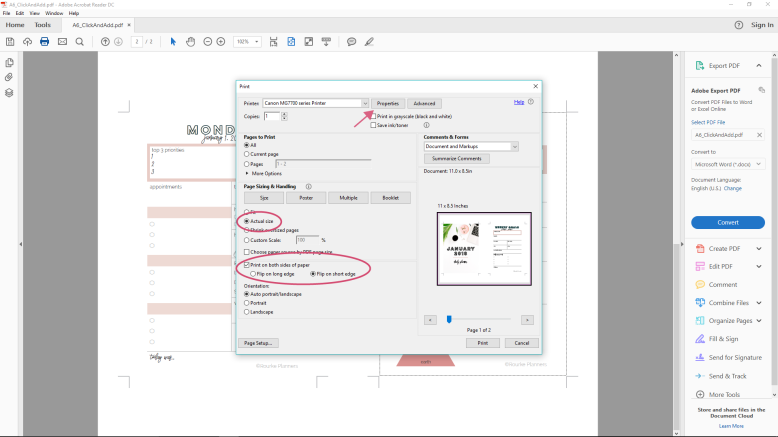
Under ‘Page Size + Handling’, select ‘Actual Size’. You’re printing landscape on US Letter (8.5″ x 11″).

STEP 3 – HIT PROPERTIES

This box is more customized to your printer. You’ll want to be sure you have 3 things right:

size

Be sure your paper size is set to US letter (8.5″ x 11″).

quality

Select your desired print quality. I always suggest printing at a good quality so you have a good planner. This may mean simply ‘high’ quality, or you can select ‘photo’ quality, whichever is better. You can also manually adjust the color settings on some printers to get a more accurate match to the screen output.

double sided

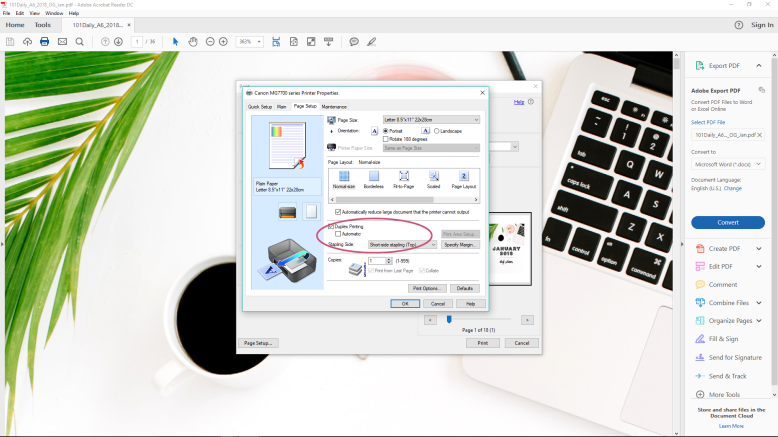
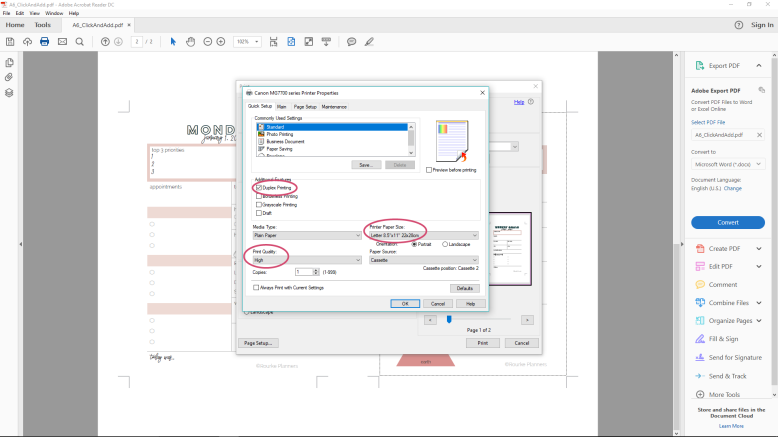
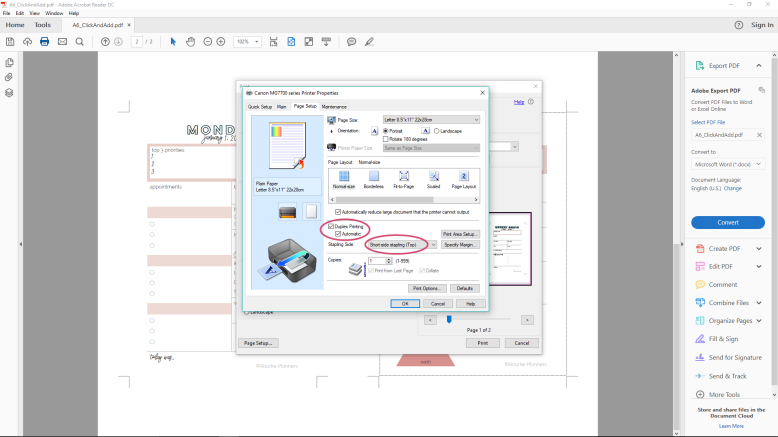
You’ll want to be sure ‘Double Sided’ or ‘Duplex’ printing is selected. The significant difference for this method is that you need to change the ‘binding’ or ‘stapling’ side to short side. This makes sure the printer will print both front + back facing the same direction. Otherwise the back sides will be upside-down. Womp womp.

STEP 4 – PRINT

Print! And watch the magic happen.

STEP 5 – RINSE + REPEAT

Now just scratch those pages of your page order and do it again with the next 4 pages.

walk through:

clickadd1

clickadd2

clickadd3

clickadd4

clickadd5

clickadd6

clickadd7

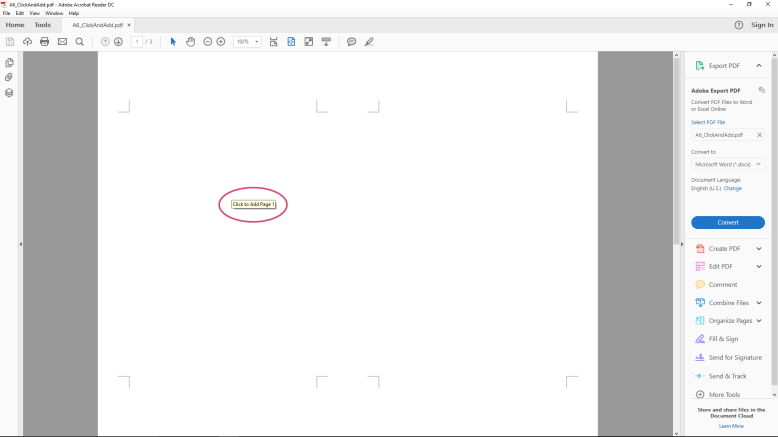
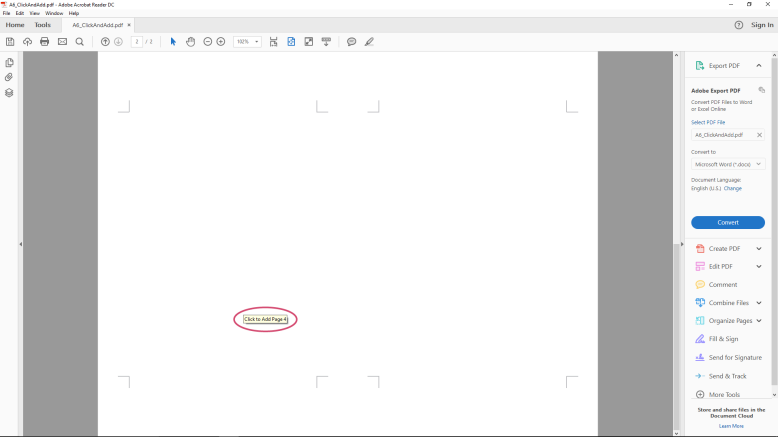
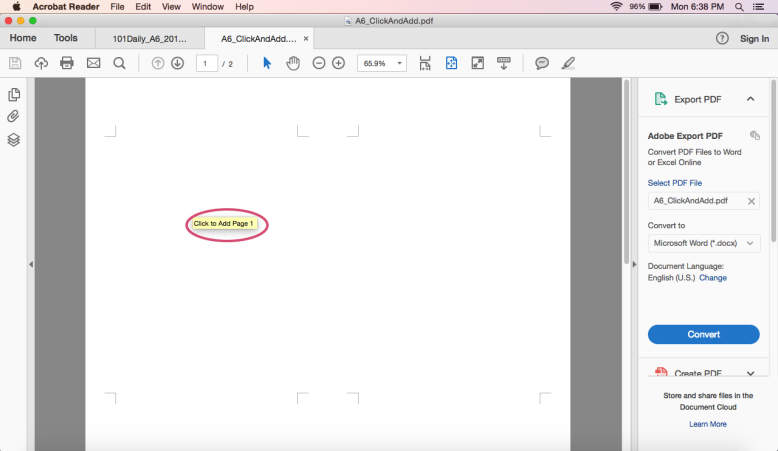
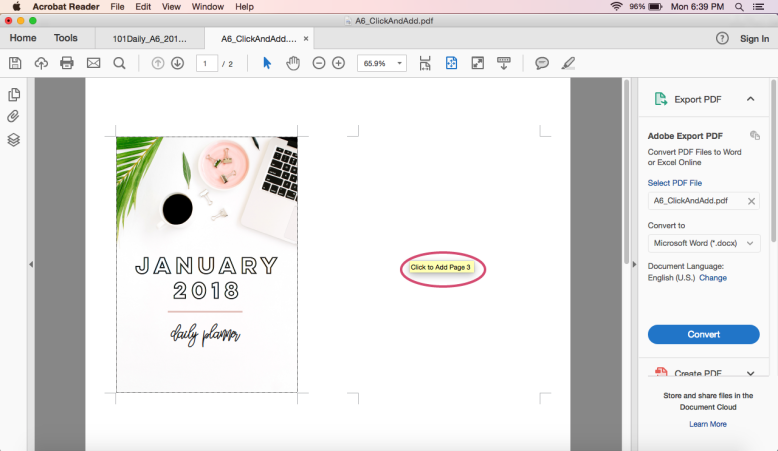
1 Open the Click and Add Template, hover over the first box. You’ll see directions over each box. Click the area.

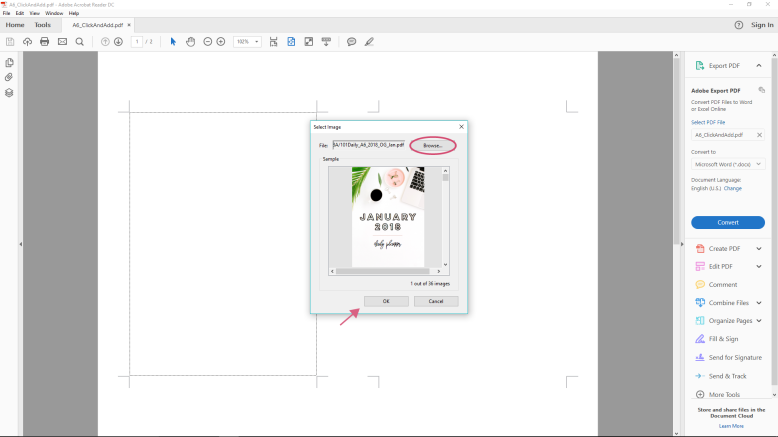
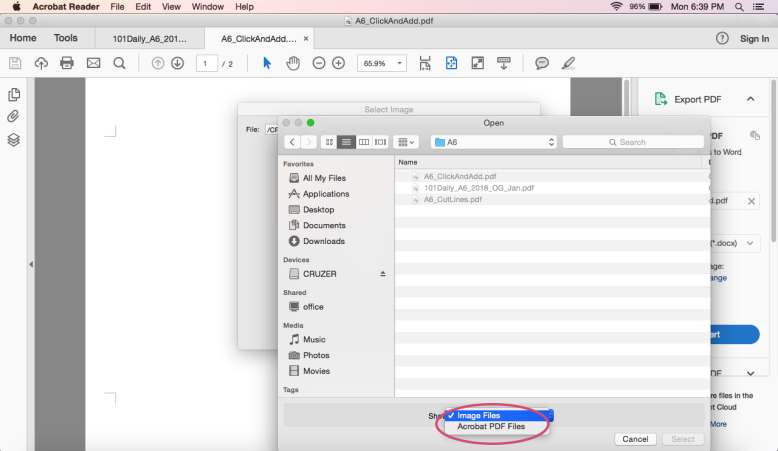
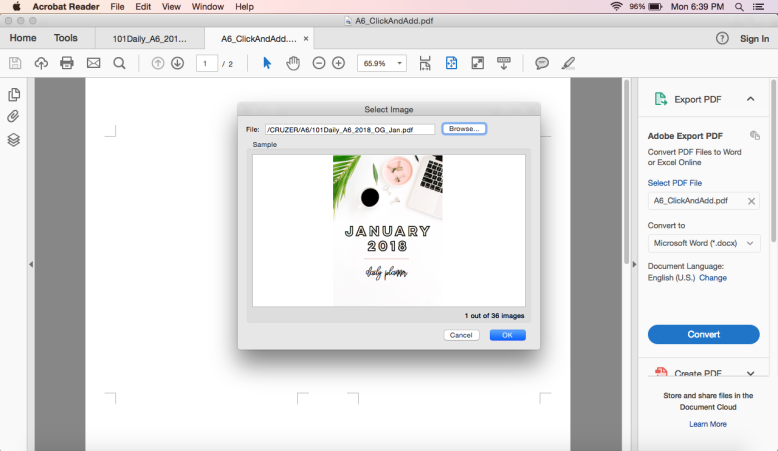
2 You’ll be prompted to select a file. You can choose either an image or PDF. Select your desired file and click OK.

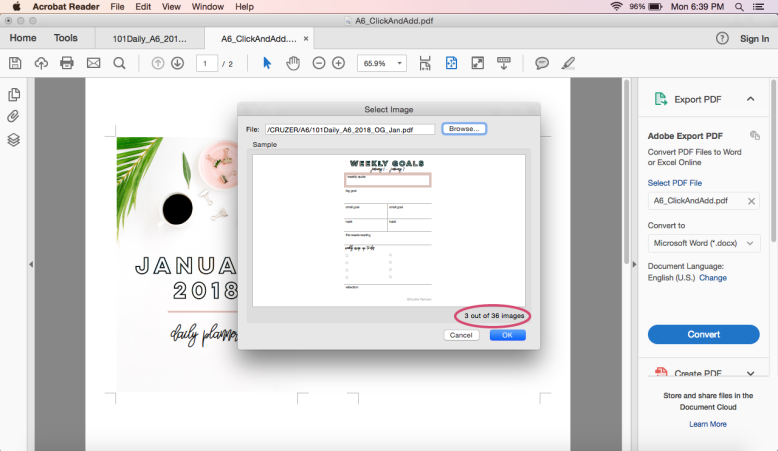
3 Your desired file will pop up in the screen. Click OK.

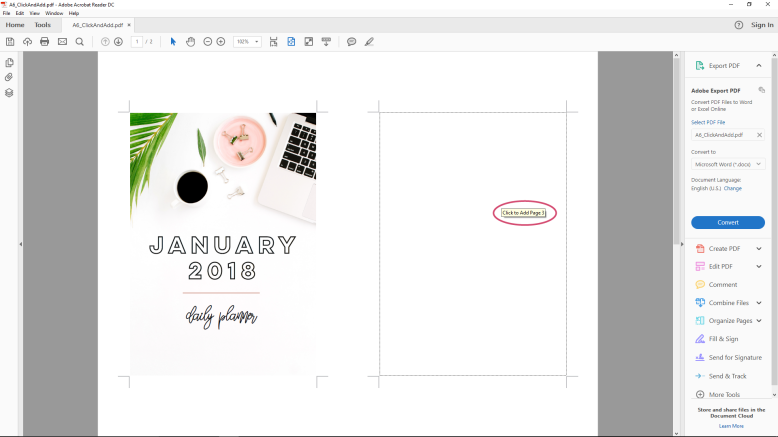
4 Repeat, paying attention to what page it tells you to add.

5 You can use a multi-page PDF – just scroll down to your desired page. Finish filling in all the spaces.

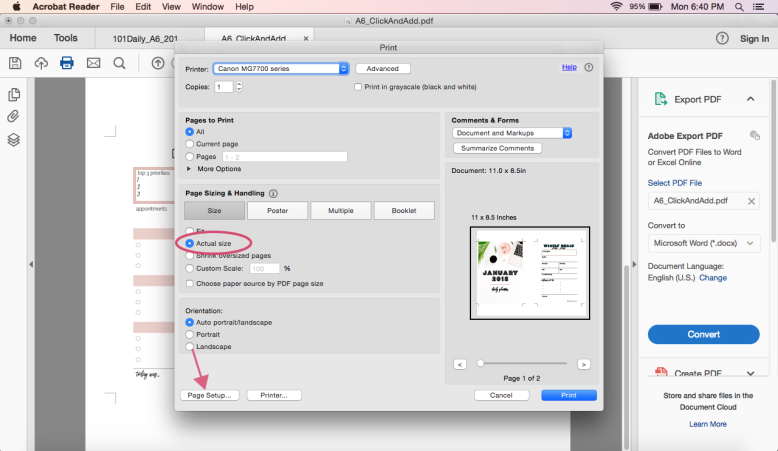
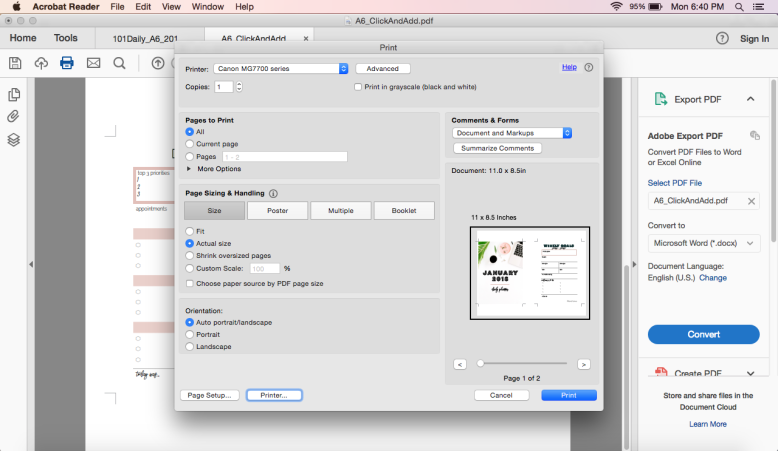
6 Print Box – select ‘actual size’ and then go to ‘page setup’.

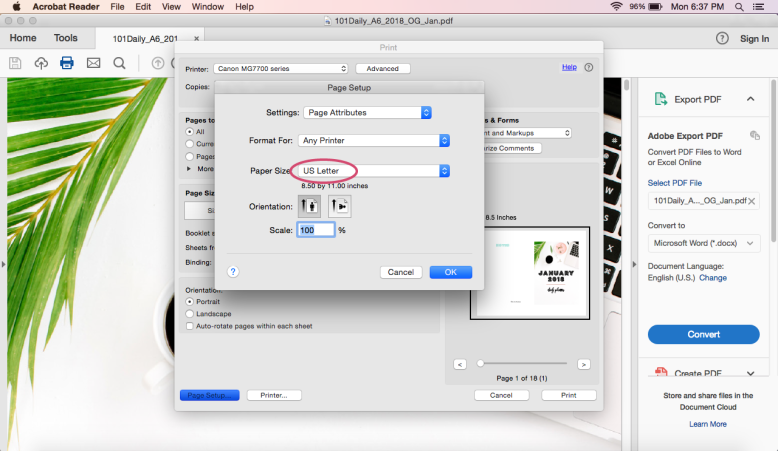
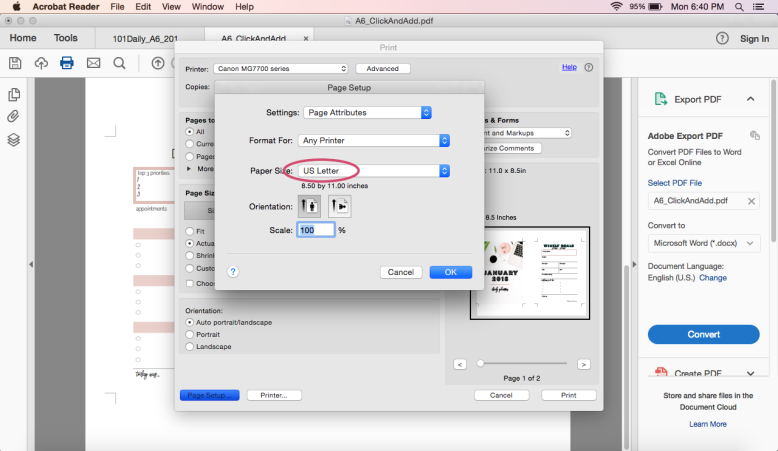
7 Page Setup – Be sure US letter is selected, click OK and go to ‘Printer’

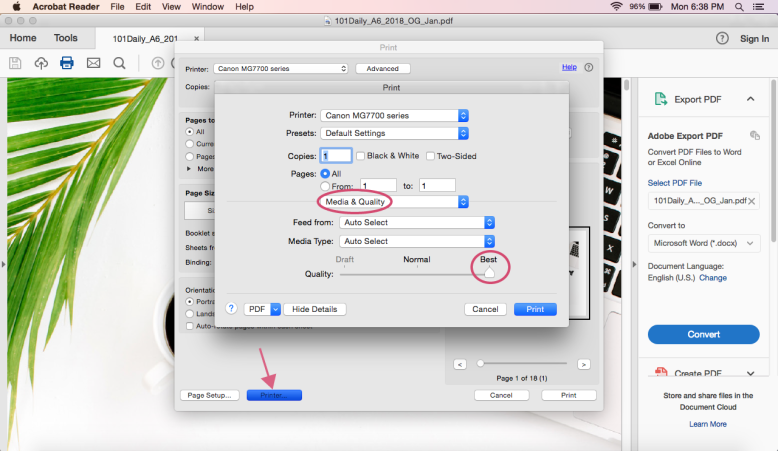
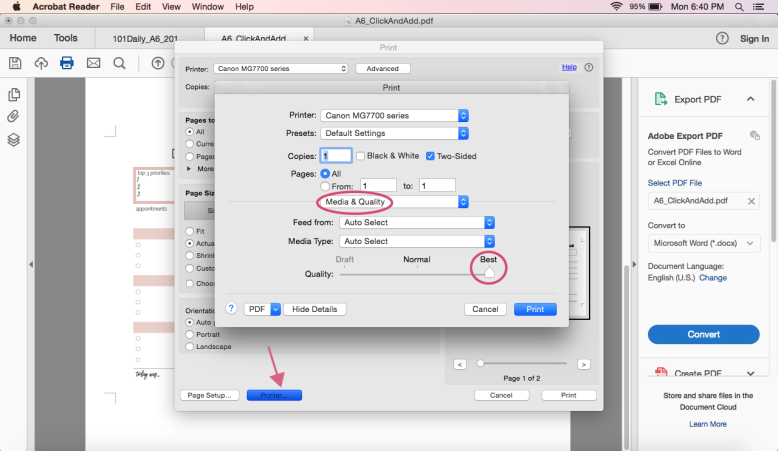
8 Printer – under media & quality, select best.

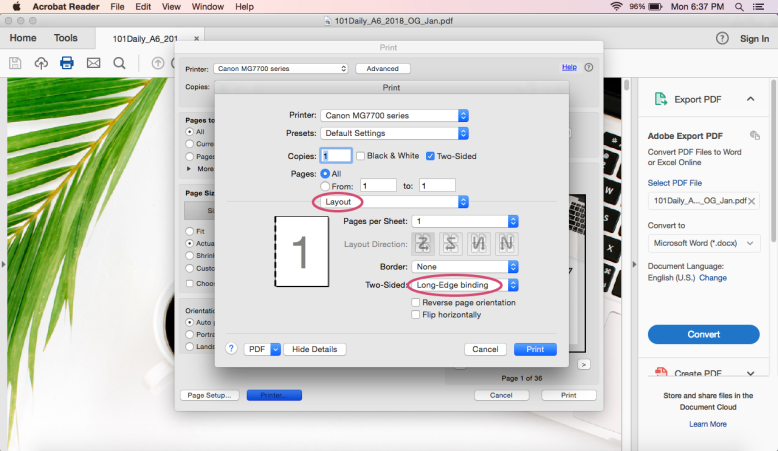
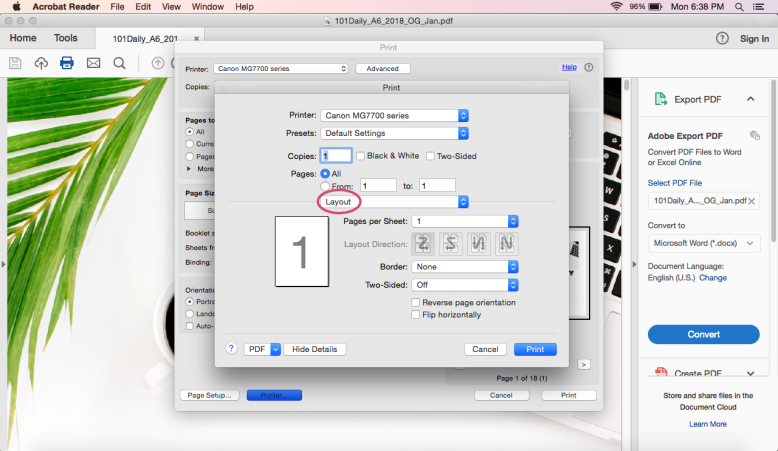
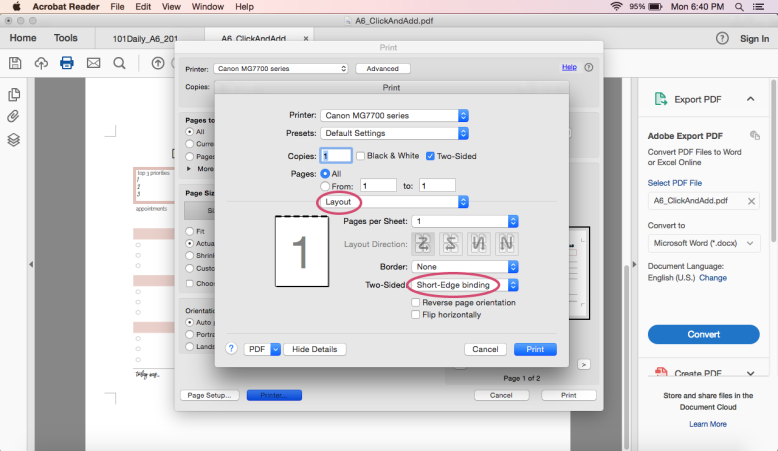
9 Printer – under layout, select ‘short-edge binding’. This is important because it will be the back of the page will be right-side up.

10 Done!


Hope this helps you in your planner printing! If you have any questions feel free to comment below, or if you’ve found a solution to a problem you’ve been having please comment too – I’m sure others are having that same issue. Be sure to pin this tutorial for the future.

Happy Planning!
Amanda
HOW TO PRINT HAPPY PLANNER SIZE PAGES ON A MAC | PRINTING GUIDES

happyplannermac_pin

So you’ve done your research, you bought your perfect planner pages, and now… you’re stuck. How do you print those beautifully designed and artfully crafted planner pages that you bought maybe here? Well I am about to show you. If you’re interested in seeing all the print tutorials, you can hop on over to this page. But in this post I’m going to show you how to print Classic Happy Planner size pages on a Mac.

So before we hop in – Classic Happy Planner size pages measure at 7″ wide and 9.25″ tall, and they fit into the Classic Happy Planner by MAMBI (available at craft stores, online at Amazon & Blitzy, and a whole bunch of other places) If you’re looking for planner pages in this specific size you can see what I offer in my shop here.

what you’ll learn:

Below I go through 2 methods for printing your planner. Both methods work when printing out your planner – whether it is a fully completed, dated planner or a piecemeal DIY planner. I talk about the basic steps that you’ll need to go through, and at the bottom I include a screenshot walk-through to give you a better visual (I use my current Canon MG7720 inkjet printer, for reference).

from start to finish, you will need the following items:

1 a computer with Adobe Reader

I always suggest having the latest Adobe Reader program. It’s free and it works the best with my pages (and most pages) because I design in Adobe.

2 printer and printer paper

3 a paper cutter of some sort

4 a hole punch

If you want more info on planner basics check out this blog post .

and now a disclaimer:

While I try to do my best to cover as much as I can when it comes to printing, I cannot know what every printer is like. I also cannot promise that my ways of printing will work for you or will turn out as well as they do for me. I do suggest that if you are having issues with your printer you google the problem first, as those familiar with your printer will likely be able to help you more than I can. If you can’t find your answer, feel free to leave a comment and I can try my best. I also suggest that you be aware of your printers capabilities before you purchase any planner pages.

Also everything is based on using US Letter size paper as the basic printer paper.

Download disclaimer – Please don’t share any files from Rourke Planners with others – instead share the website URL with your friends, enemies, or awkward acquaintances.
Any files, free or purchased, from Rourke Planners are copyrighted works and for personal use only. You may not sell, distribute, edit, or claim any version of this file as your own. Feel free to share your usage of these files on social media – you don’t have to tag me but it’s super appreciated. Tag me on instagram with @RourkePlanners or #myrourkeplanner.

Read Me File


THE ‘AS IS’ METHOD – ON PRE-CUT PAPER

This is always my suggest method of printing your planner pages. It’s much easier to get pages in order for a dated planner or to get double sided pages for other pages. The basis of this method is that you have pre-cut pages and you print ‘as is’ – meaning in that page size.

STEP 1 – OPEN YOUR PAGES IN ADOBE READER

STEP 2 – HIT PRINT

Under ‘Page Size + Handling’, be sure ‘Actual Size’ is selected.

You can also select ‘Print on Both Sides’ in this box.

STEP 3 – HIT PROPERTIES

This box is more customized to your printer. You’ll want to be sure you have 3 things right:

size

Be sure the paper size is correct. In this case, you’ll make sure it’s set to [size]. Many printers will allow you to set a custom paper size if the desired one isn’t available.

quality

Select your desired print quality. I always suggest printing at a good quality so you have a good planner. This may mean simply ‘high’ quality, or you can select ‘photo’ quality, whichever is better. You can also manually adjust the color settings on some printers to get a more accurate match to the screen output.

double sided

This may be displayed as ‘double sided’ or ‘duplex’ printing. Be sure to select it if your printer can handle it. If it is letter or half letter, it should be able to. My printer, for example, can automatically print letter size double sided but to print half-letter double sided you need to change it to manual. This means it prints out one side of the stack, you put the paper back in, and then it prints the other side. My printer cannot print personal side double-sided, so I have to print those one at a time. If you aren’t sure what your printer can do double-sided, you can either google or just try it out & see.

STEP 3 – PRINT

Now all you need to do is print! And punch holes in the pages.


walk through:

asis1

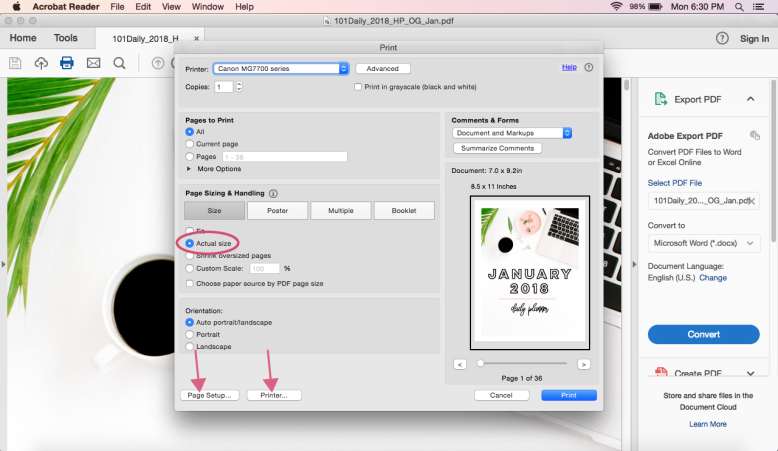
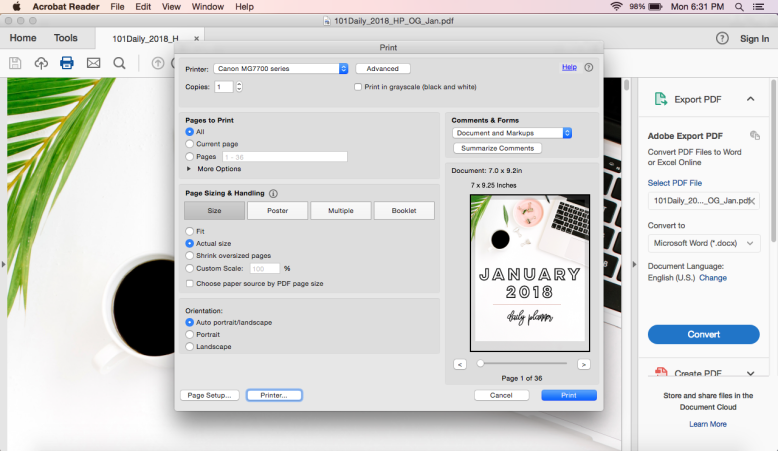
1 Print Box – Click ‘Actual Size’, then click on ‘Page Setup’

asis2

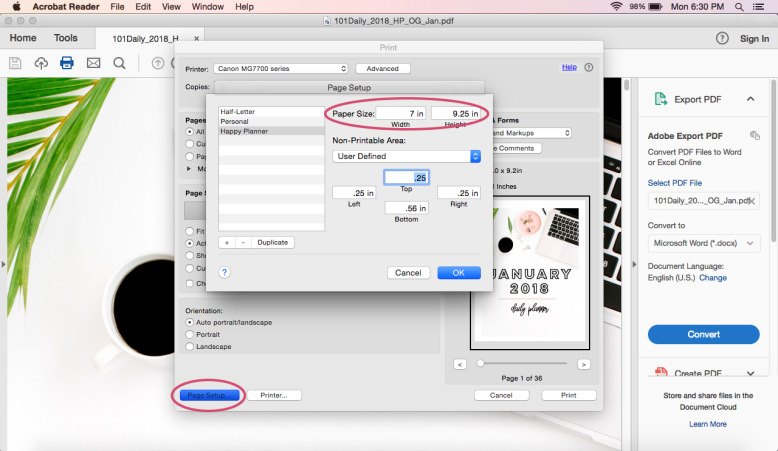
2 Page Setup – Under Paper Size, go to ‘Custom’

asis3

3 ‘Custom Paper Size’ – Enter in the correct dimensions (7″ x 9.25″), then click OK and go to ‘Printer’

asis4

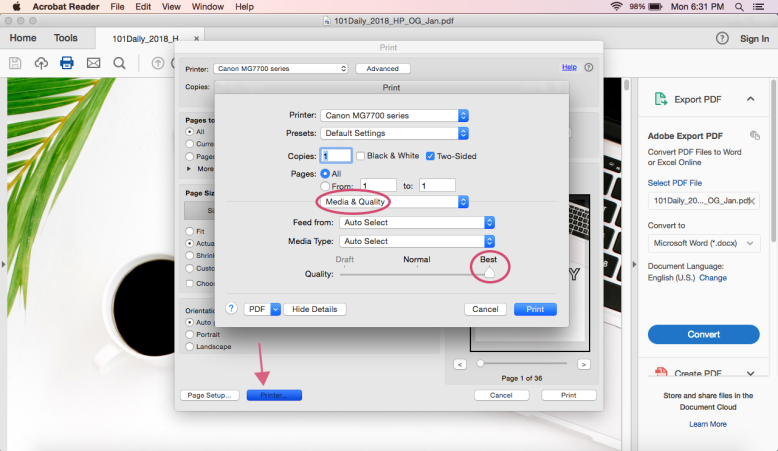
4 Printer – Under Media & Quality, click best quality

asis5

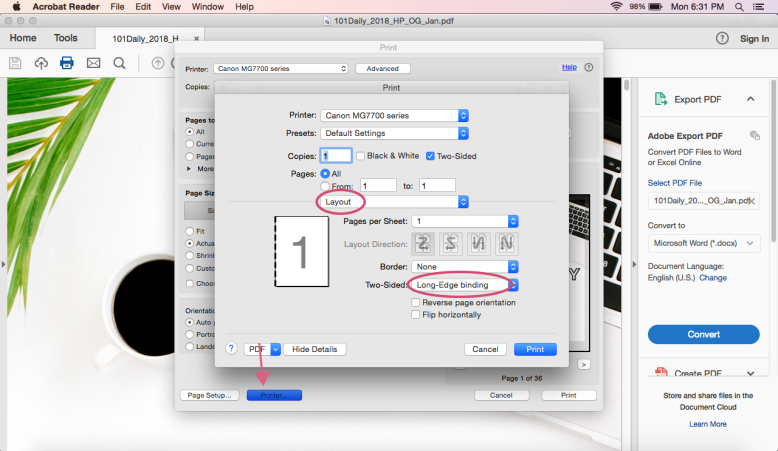
5 Printer – Under ‘Layout’, select Long-Edge Binding

asis6

6 Done!


THE ‘AS IS’ METHOD – ON LETTER PAPER

So I’m not going to give a full play-by-play for this one. The gist of it is – if your printer cannot print on Happy Planner size paper, you can still just print on full US Letter paper and THEN cut the pages out. I’m not as big a fan of this method because (1) the printing is a bit less aligned with the end result and (2) you get smaller scraps of paper, making them harder to reuse. Also you have to cut more. BUT it is nice to have the option if your printer can’t do the custom size.

If you are going to do this method regularly I highly suggest getting a proper paper cutter. That way you can simply do your measurement on the cutter and cut – instead of having to print out guide lines or mark with a ruler.

The only difference will be that you WILL NOT PUT IN A CUSTOM SIZE. Just leave it on US Letter (8.5″ x 11″). It will print out with your planner page centered on the paper.

If you want some cut lines to print on the paper to help you out – I got you. I made it in both PDF and PNG – either will work. Just gather up your planner pages, put them back in the printer, and print the proper number of copies of the cut lines. Flip your papers over and do it again.

Cut Lines PDF | Cut Lines PNG

I’ve also made a nice little draw-up of where your cut lines will be if you’re doing the original ‘As Is’ (Cut then Print) or printing on US Letter (Print then Cut).

wheretocut_happyplanner

And once you’ve printed and cut out your pages, all you need to do is punch them and put them into your happy planner!


Hope this helps you in your planner printing! If you have any questions feel free to comment below, or if you’ve found a solution to a problem you’ve been having please comment too – I’m sure others are having that same issue. Be sure to pin this tutorial for the future.

Happy Planning!
Amanda
HOW TO PRINT A5 SIZE PAGES ON A MAC | PRINTING GUIDES

a5mac_pin

So you’ve done your research, you bought your perfect planner pages, and now… you’re stuck. How do you print those beautifully designed and artfully crafted planner pages that you bought maybe here? Well I am about to show you. If you’re interested in seeing all the print tutorials, you can hop on over to this page. But in this post I’m going to show you how to print A5 size pages on Windows.

So before we hop in – A5 size pages measure at 148mm/5.83″ w by 210mm/8.27″ h and they fit into A5 size six-ring planners and A5 size binders (not a size used for binders in the US). If you’re looking for planner pages in this specific size you can see what I offer in my shop here.

I do want to note that if you are in the US you can print A5 size pages onto Half-Letter (that is, half a normal US Letter sheet), almost always without issue. This is beneficial because you can have 2 pages per piece of paper, whereas if you’re printing real A5 size you can only get 1 page per piece of paper. BUT if you can get your hands on real A5 or A4 (which is twice the size, so if you cut A4 in half you will get A5, just like US Letter to Half Letter).

what you’ll learn:

Below I go through 2 methods for printing both a full, dated planner (think 2017 daily planner) and a DIY, fill-in, random page planner. I talk about the basic steps that you’ll need to go through, and at the bottom I include a screenshot walk-through to give you a better visual. For windows, I’ve included a walk-through of my current Canon MG7720 printer (inkjet).

from start to finish, you will need the following items:

1 a computer with Adobe Reader

I always suggest having the latest Adobe Reader program. It’s free and it works the best with my pages (and most pages) because I design in Adobe.

2 printer and printer paper

3 a paper cutter of some sort

4 a hole punch

If you want more info on planner basics check out this blog post .

and now a disclaimer:

While I try to do my best to cover as much as I can when it comes to printing, I cannot know what every printer is like. I also cannot promise that my ways of printing will work for you or will turn out as well as they do for me. I do suggest that if you are having issues with your printer you google the problem first, as those familiar with your printer will likely be able to help you more than I can. If you can’t find your answer, feel free to leave a comment and I can try my best. I also suggest that you be aware of your printers capabilities before you purchase any planner pages.

Also everything is based on using US Letter size paper as the basic printer paper.

Download disclaimer – Please don’t share any files from Rourke Planners with others – instead share the website URL with your friends, enemies, or awkward acquaintances.
Any files, free or purchased, from Rourke Planners are copyrighted works and for personal use only. You may not sell, distribute, edit, or claim any version of this file as your own. Feel free to share your usage of these files on social media – you don’t have to tag me but it’s super appreciated. Tag me on instagram with @RourkePlanners or #myrourkeplanner.

Read Me File

PRINTING ‘AS IS’ METHOD ON PRE-CUT PAPER

STEP 1 – OPEN YOUR PAGES IN ADOBE READER

STEP 2 – HIT PRINT

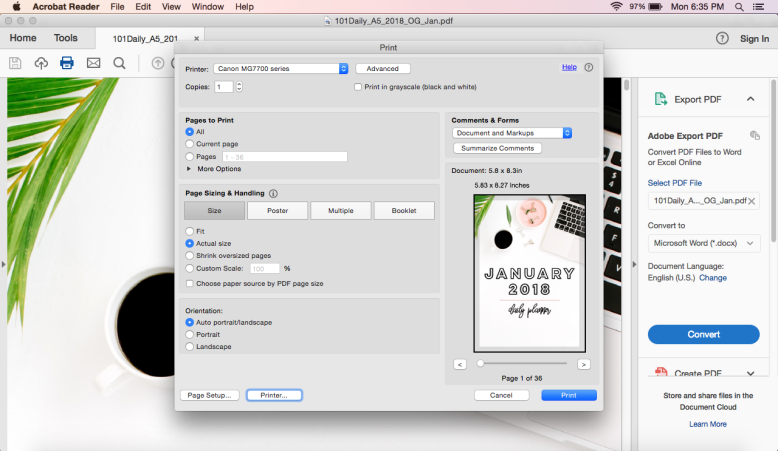
Under ‘Page Size + Handling’, be sure ‘Actual Size’ is selected.

You can also select ‘Print on Both Sides’ in this box.

STEP 3 – HIT PROPERTIES

This box is more customized to your printer. You’ll want to be sure you have 3 things right:

size

Be sure the paper size is correct. In this case, you’ll make sure it’s set to A5 or Custom Size> 5.83″ w by 8.27″ h. Many printers will allow you to set a custom paper size if the desired one isn’t available.

quality

Select your desired print quality. I always suggest printing at a good quality so you have a good planner. This may mean simply ‘high’ quality, or you can select ‘photo’ quality, whichever is better. You can also manually adjust the color settings on some printers to get a more accurate match to the screen output.

double sided

This may be displayed as ‘double sided’ or ‘duplex’ printing. Be sure to select it if your printer can handle it. My printer can do double sided for larger sheets, but it can only do automatic double-sided printing for letter. So it prints out one side of all the pages, then you just load it back in and it will print the other side. If your printer can’t print double sided you can always just print one page at a time. I use it as an opportunity to watch something and do squats while I’m moving from computer to printer.

STEP 3 – PRINT

Now all you need to do is print! And punch holes in the pages.


walk through:

asis1

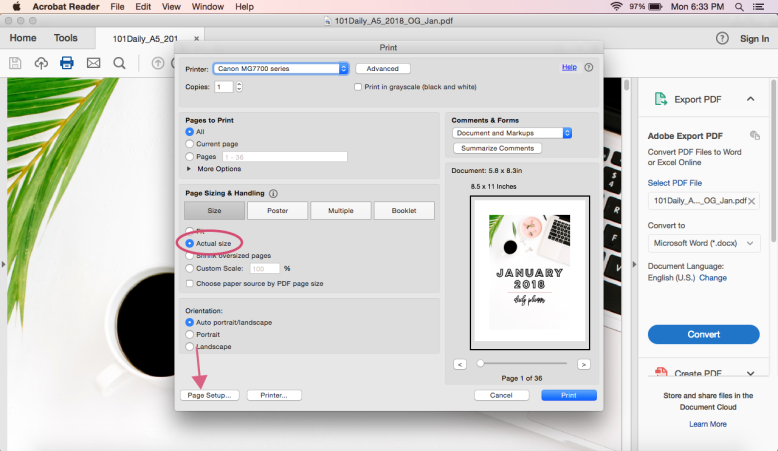
1 Print Box – Select ‘Actual Size’ and then go to Page Setup

asis2

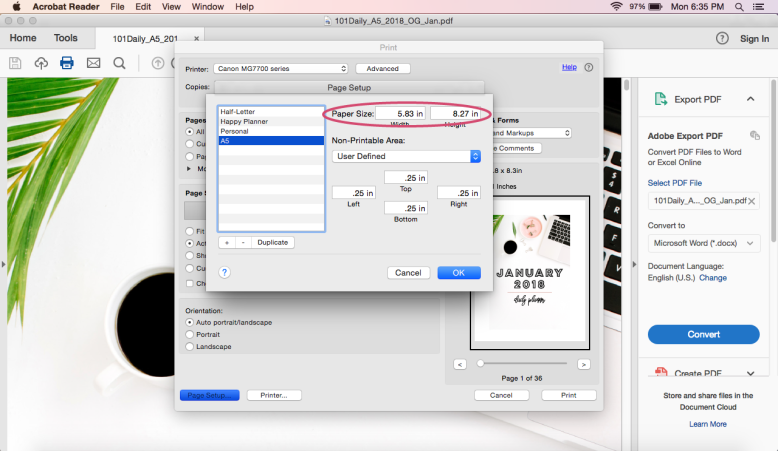
2 Page Setup – go to paper size and select either A5 or enter in a custom size

asis3

3 Page Setup – Enter in your custom paper size, then click OK and go to ‘Printer’ at the bottom

asis4

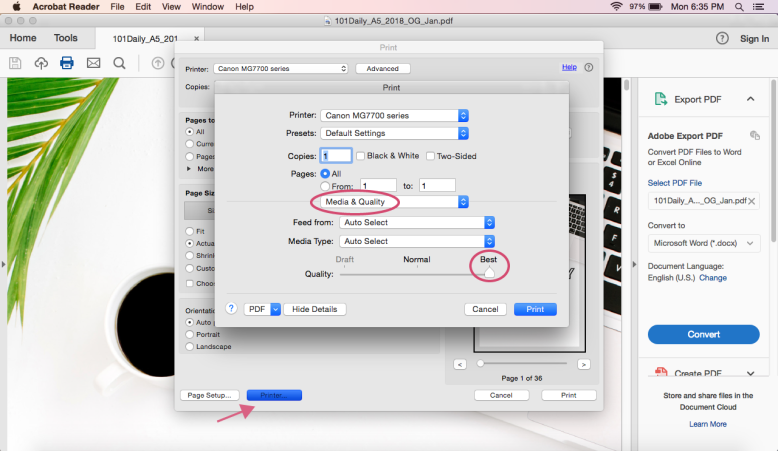
4 Printer – Under ‘Media & Quality’, select best quality

asis5

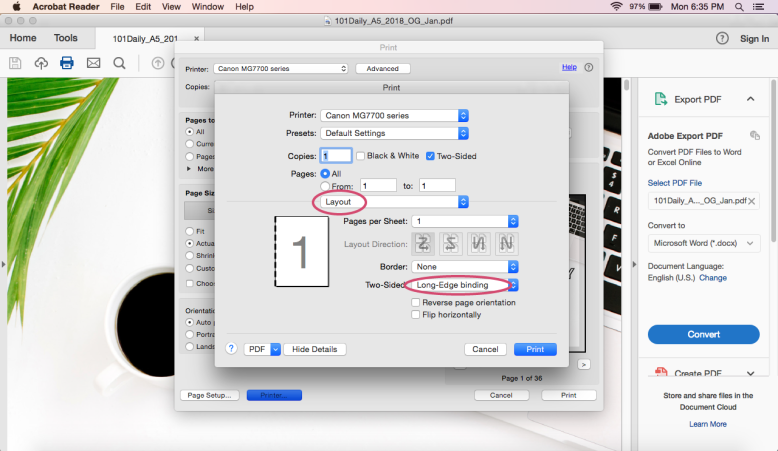
5 Printer – Under ‘Layout’, select long-edge binding

asis6

6 Done!

PRINTING ‘AS IS’ ON LETTER PAPER

So this is pretty much the same as above, except you will be keeping the paper size as ‘Letter’ (8.5″ x 11″). This is the default of all US printers so it’s quite easy. The reason I’m not as big a fan of this method is because it is much easier overall to cut-then-print, rather than print-then-cut. You have to measure to the center of the page, rather than from the corner, leaving you with more measurements & cutting (as well as smaller scraps of paper you’re less likely to use). HOWEVER if your printer won’t let you print on A5 size paper, this is the method for you.

To help you out, I’ve included both a little picture illustrating how to cut the paper, as well as some printable cut lines to guide you.

centercutlines

If you want some extra help I’ve linked some printable cut lines for you below. All you need to do is print them on one side of all your planner pages and then use them to guide your cutting.

Cut Lines PDF | Cut Lines PNG

Hope this helps you in your planner printing! If you have any questions feel free to comment below, or if you’ve found a solution to a problem you’ve been having please comment too – I’m sure others are having that same issue. Be sure to pin this tutorial for the future.

Happy Planning!
Amanda
HOW TO PRINT A6 SIZE PAGES ON A MAC | PRINTING GUIDES

a6mac_pin

So you’ve done your research, you bought your perfect planner pages, and now… you’re stuck. How do you print those beautifully designed and artfully crafted planner pages that you bought maybe here? Well I am about to show you. If you’re interested in seeing all the print tutorials, you can hop on over to this page. But in this post I’m going to show you how to print A6 size pages on Windows.

So before we hop in – A6 size pages measure at 4.13″ w x 5.83″ h (or 148mm h x 105mm w) and they fit into A6 size 6-ring organizers. A6 is not a very common size in the US but is used more internationally. If you want more information on paper sizes and what planners use what size hop on over to this blog post. If you’re looking for planner pages in this specific size you can see what I offer in my shop here.
what you’ll learn:

Below I go through 3 methods for printing your planner. Whether you have a fully complete planner (like a 2018 daily planner) or a DIY, piece-it-together planner, there will be a method for you. I talk about the basic steps that you’ll need to go through, and at the bottom I include a screenshot walk-through to give you a better visual. I’ve included a walk-through of my current Canon MG7720 printer (inkjet).

from start to finish, you will need the following items:

1 a computer with Adobe Reader

I always suggest having the latest Adobe Reader program. It’s free and it works the best with my pages (and most pages) because I design in Adobe.

2 printer and printer paper

3 a paper cutter of some sort

4 a hole punch

If you want more info on planner basics check out this blog post .

and now a disclaimer:

While I try to do my best to cover as much as I can when it comes to printing, I cannot know what every printer is like. I also cannot promise that my ways of printing will work for you or will turn out as well as they do for me. I do suggest that if you are having issues with your printer you google the problem first, as those familiar with your printer will likely be able to help you more than I can. If you can’t find your answer, feel free to leave a comment and I can try my best. I also suggest that you be aware of your printers capabilities before you purchase any planner pages.

Also everything is based on using US Letter size paper as the basic printer paper.

Download disclaimer – Please don’t share any files from Rourke Planners with others – instead share the website URL with your friends, enemies, or awkward acquaintances.
Any files, free or purchased, from Rourke Planners are copyrighted works and for personal use only. You may not sell, distribute, edit, or claim any version of this file as your own. Feel free to share your usage of these files on social media – you don’t have to tag me but it’s super appreciated. Tag me on instagram with @RourkePlanners or #myrourkeplanner.

Read Me File

THE ‘AS IS’ METHOD ON PRE-CUT PAGES

This is always my suggest method of printing your planner pages. It’s not only easy for a complete, dated planner; it’s the best way to print a piecemeal planner. When you’re dealing with putting things in order while keeping things double-sided, it gets complicated. The basis of this method is that you have pre-cut pages and you print ‘as is’ – meaning in that page size.

STEP 1 – OPEN YOUR PAGES IN ADOBE READER

STEP 2 – HIT PRINT

Under ‘Page Size + Handling’, be sure ‘Actual Size’ is selected.

You can also select ‘Print on Both Sides’ in this box.

STEP 3 – HIT PROPERTIES

This box is more customized to your printer. You’ll want to be sure you have 3 things right:

size

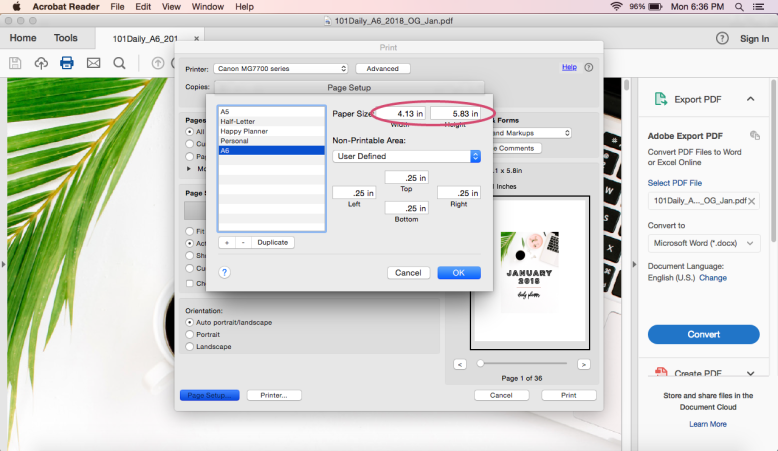
Be sure the paper size is correct. In this case, you’ll make sure it’s set to A6 or Custom>4.13″ w x 5.83″ h. Many printers will allow you to set a custom paper size if the desired one isn’t available.

quality

Select your desired print quality. I always suggest printing at a good quality so you have a good planner. This may mean simply ‘high’ quality, or you can select ‘photo’ quality, whichever is better. You can also manually adjust the color settings on some printers to get a more accurate match to the screen output.

double sided

This may be displayed as ‘double sided’ or ‘duplex’ printing. Be sure to select it if your printer can handle it. If you aren’t sure, I suggest you just test it out. If your printer can’t do double-sided automatically, maybe you can do a manual duplex printing (it prints one side of the whole stack, you put the stack back in and it prints the other). If it can’t do double-sided at all, this isn’t a deal breaker. I just print one page at a time. It’s a bit annoying, but it’s a good chance to put something entertaining on and do some squats while you’re alternating between computer and printer.

STEP 3 – PRINT

Now all you need to do is print! And punch holes in the pages.

walk through:

asis1

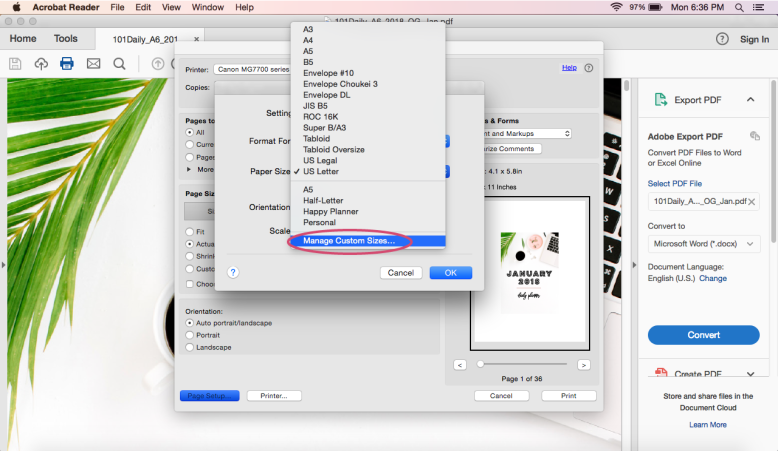
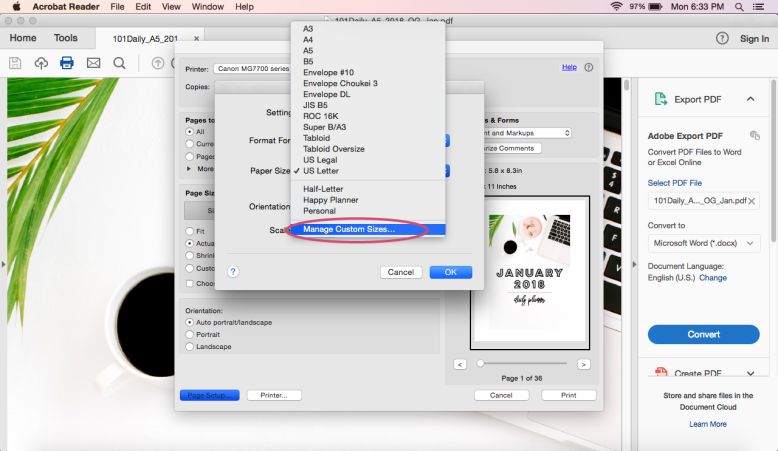
1 Print Box – select ‘actual size’ and then click ‘page setup’

asis2

2 Page Setup – select A6 or custom size

asis3

3 Custom Page Size – enter in the proper page size, then click OK and click ‘Printer’ at the bottom

asis4

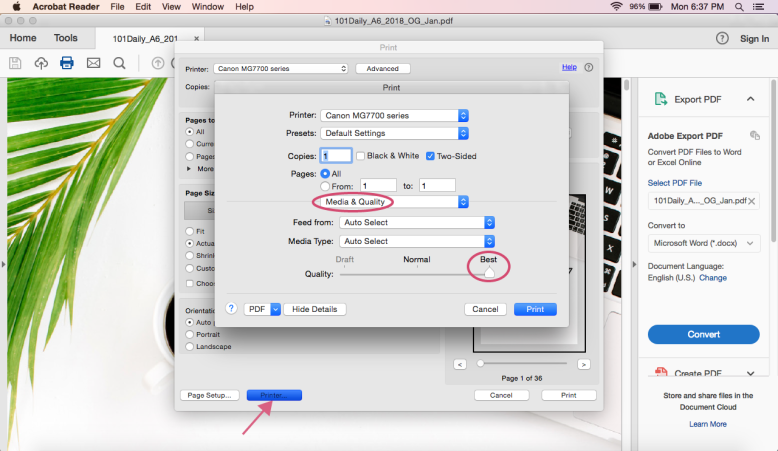
4 Printer – under ‘Media & Quality’, select high quality

asis5

5 Printer – under ‘Layout’, select ‘long-edge binding’

Done!

THE ‘BOOKLET’ METHOD – FOR DATED PLANNERS

A6 Cut Lines PDF

This method only really works with a multi-page PDF, such as a dated planner (like the 2018 daily planner or something similar – not a planner where you fill it in yourself). If you can’t print on pre-cut pages but have a DIY planner, check the next method.

This method is for anyone whose printer cannot print on small enough paper. It will print your pages on letter size paper at their proper size. Once the stack is printed out, you fold the stack in half and bam – all the pages are double sided and in the right order. You just need to cut out the pages AFTER you print them. The benefit to this method is that your printer will print in order (for double sided pages) and you can use letter size. The downside is that it’s a real pain to cut afterwards and then get the pages in order. And in my experience the pages aren’t quite as even as when you print one page at a time.

If you’re wondering how you’ll know where to cut, I created a simple cut lines printable available below. You can print it on the paper before or after you print your pages. I cannot promise it will line up perfectly, however – that’s really up to your printer. (You can see why I suggest the first method).

STEP 1 – OPEN YOUR PAGES IN ADOBE READER

STEP 2 – HIT PRINT

Under ‘Page Size + Handling’, select ‘booklet’. You’ll see your paper is now landscape and the cover page is on the right side.

STEP 3 – HIT PROPERTIES

This box is more customized to your printer. You’ll want to be sure you have 3 things right:

size

Because we’re printing in booklet, be sure your paper size is set to US letter (8.5″ x 11″). Otherwise everything will be super tiny.

quality

Select your desired print quality. I always suggest printing at a good quality so you have a good planner. This may mean simply ‘high’ quality, or you can select ‘photo’ quality, whichever is better. You can also manually adjust the color settings on some printers to get a more accurate match to the screen output.

double sided

So this is one that really depends on your printer. From my experience with multiple printers, you do not need to have ‘double sided’ selected as that is kind of the point of booklet printing. But I can’t know your printer. It doesn’t make a difference whether or not I click ‘double sided’ or duplex.

STEP 3 – PRINT

Now print! Once the pages are printed you may be like ‘hey they’re out of order!’, and they kind of are unless you fold that stack of paper like a playbill and everything is in order. So cut out your pages and get them in the right order, then you can punch them.

canon walk through:

booklet1

1 Print Box – select ‘booklet’ and then go to ‘page setup’

booklet2

2 Page Setup – make sure paper size is US Letter. Click OK and then go to ‘Printer’

booklet3

3 Printer – under ‘Media & Quality’, select best

booklet4

4 Printer – Most computers will take care of the double sided printing for you, but you may need to select double-sided printing.

booklet5

5 Done!

THE CLICK + ADD METHOD FOR RANDOM PAGES

OK, so. You have a bunch of pages and you need to print them on letter paper because your printer can’t handle the smaller paper size. And it’s a conundrum. Enter, the click-and-add template. Patent Pending. Just kidding. I created a PDF that you can insert other PDFs into, so you can print your pages in order and double sided. Personally, I think it’s super cool.

A quick word about the click & add template – You can use any image file (namely jpeg or png) OR any unsecured PDF. This is pretty cool in my book, because you can easily make your own pages in any program that will allow you to save in either an image file or PDF, and you can make your own covers. You can add in specific pages of multi-page PDFs by simply selecting the PDF (see below) and then scrolling to the right page. The template will not resize pages, unfortunately. This is how I had to set it so that it didn’t shrink down my properly-sized PDF pages. If you have any other questions about the template please feel free to comment below.

Click & Add Template

STEP 1 – DECIDE ON YOUR PAGE ORDER

Because we’re getting all DIY here, you’ll need to figure out your page order. Now if you’re just looking to do double-sided, this is pretty easy. Box 1 + 2 are the first page (front and back), box 3 + 4 are the second page (front and back). Notice they aren’t ‘in order’ on the PDF. Just follow the number and all will be well.

If you’re creating a planner that has facing pages, such as a ‘week on 2 pages’ planner, be sure to include a cover and back page so that the proper pages will face each other.
As an example:
Box 1 – Cover Page
Box 2 – MTW
Box 3 – ThFSS
Box 4 – MTW
then continue with alterating sides (so the next piece of paper, Box 1 will be ThFSS) until you have enough weeks. Then at the end, instead of MTW as box 4, it will be the back cover/notes  page/empty.

If you do it this way, then the back of page 1 is facing the front of page 2.

STEP 2 – HIT PRINT

Under ‘Page Size + Handling’, select ‘Actual Size’. You’re printing landscape on US Letter (8.5″ x 11″).

STEP 3 – HIT PROPERTIES

This box is more customized to your printer. You’ll want to be sure you have 3 things right:

size

Be sure your paper size is set to US letter (8.5″ x 11″).

quality

Select your desired print quality. I always suggest printing at a good quality so you have a good planner. This may mean simply ‘high’ quality, or you can select ‘photo’ quality, whichever is better. You can also manually adjust the color settings on some printers to get a more accurate match to the screen output.

double sided

You’ll want to be sure ‘Double Sided’ or ‘Duplex’ printing is selected. The significant difference for this method is that you need to change the ‘binding’ or ‘stapling’ side to short side. This makes sure the printer will print both front + back facing the same direction. Otherwise the back sides will be upside-down. Womp womp.

STEP 4 – PRINT

Print! And watch the magic happen.

STEP 5 – RINSE + REPEAT

Now just scratch those pages of your page order and do it again with the next 4 pages.


walk through:

clickadd1

1 Open the Click and Add Template, hover over the first box. You’ll see directions over each box. Click the area.

clickadd2

2 You’ll be prompted to select a file. You can choose either an image or PDF. Select your desired file and click OK.

clickadd3

3 Your desired file will pop up in the screen. Click OK.

clickadd4

4 Repeat, paying attention to what page it tells you to add.

clickadd5

5 You can use a multi-page PDF – just scroll down to your desired page. Finish filling in all the spaces.

clickadd6

6 Print Box – select ‘actual size’ and then go to ‘page setup’.

clickadd7

7 Page Setup – Be sure US letter is selected, click OK and go to ‘Printer’

clickadd8

8 Printer – under media & quality, select best.

clickadd9

9 Printer – under layout, select ‘short-edge binding’. This is important because it will be the back of the page will be right-side up.

clickadd10

10 Done!

Hope this helps you in your planner printing! If you have any questions feel free to comment below, or if you’ve found a solution to a problem you’ve been having please comment too – I’m sure others are having that same issue. Be sure to pin this tutorial for the future.

Happy Planning!
Amanda